
Notate for Windows requires a license key in order to operate. This guide will instruct you on how to install your license key. If you don’t already have a license key, please contact sales@shafersystems.com
For Windows, Notate policies and license are stored in the Windows registry. You can manage the registry entries with the regedit.exe command or by running a .reg file as described below. There are two key pathes for policies:
-
HKEY_LOCAL_MACHINE\Software\ShaferSystems\Notate\Policies -
HKEY_CURRENT_USER\Software\ShaferSystems\Notate\Policies
The policies at the HKEY_LOCAL_MACHINE path have higher priority since only administrators can change them. See sample Windows registry file in step 15 below.
-
A sample Windows Registry file which you can edit to include your own license key and exchange information is included here. Please note that for the license key field must not include linebreaks in order to be inserted properly into the Windows registry. You will need to remove line breaks from your license key.
Sample Registry Text:
Windows Registry Editor Version 5.00

[HKEY_LOCAL_MACHINE\SOFTWARE\ShaferSystems]
[HKEY_LOCAL_MACHINE\SOFTWARE\ShaferSystems\Notate]
[HKEY_LOCAL_MACHINE\SOFTWARE\ShaferSystems\Notate\Policies]

; NOTE- PLEASE EDIT THE VALUES BELOW

; USER EMAIL
"useremail"="user@mycompany.com"

; USER NAME -  sometimes the same as the user email
"username"="user@mycompany.com"

; LICENSING KEY -   The licensing key (with any linebreaks removed) which you recieved from sales@shafersystems.com
"licensingkey"="your_license_key_with_no_linebreaks_goes_here"

; EXCHANGE URL -   The Exchange URL that you are connecting to, whether on-prem or office 365
"exchangeURL"="https://outlook.office365.com/EWS/Exchange.asmx"

; USE MODERN AUTH - set to 00000001 if you are using Office365 Modern Auth, or 00000000 otherwise
"useModernAuth"=dword:00000001

; ALLOW MICROSOFT AUTHENTICATOR - Having the policy off will allow the user to log in with modern authentication even if MS Authenticator is installed.
"allowMicrosoftAuthenticator"=dword:00000001

; ALLOW HASHED SHARING - set to 00000001 to enable Notate folder sharing on the Exchange server
"allowHashedSharing"=dword:00000001

; SUPPORT EMAIL -   The address that send feedback will be routed to.
"supportEmail"="support@shafersystems.com"

; ALLOW CAMERA - Allow device camera to insert pictures in notes, allow scanning.
"allowCamera"=dword:00000001

; ALLOW GALLERY - Allow users to paste images from photo gallery.
"allowGallery"=dword:00000001

; ALLOW TASKS - Allow users to manage tasks in Notate.
"allowTasks"=dword:00000001

; ALLOW CONTACTS - Allow users to scan business cards into Exchange and manage Contacts in Notate.
"allowContacts"=dword:00000001

; ALLOW FILES - Allow users to manage files and PDF editing in Notate.
"allowFiles"=dword:00000001

; TRUSTED CERTIFICATES - Allow an admin to setup one or a few server trusted certificates. Policy should contain SHA1 hashes which separated by comma or semicolon characters. SHA1 should be present as HEX formatted string with or without spaces in any register.
"trustedCertificates"=""

;  HTTP PROXY -  Allows an admin to setup proxy server to be used for web requests. Should be in format <domain>:<port> (i.e. localhost:3128)
; "httpProxy"="localhost:3128"
2. Unzip and then edit the sample policy file to include your own values including ExchangeURL, optionally username and user email, your license key (free from linebreaks), and modern auth policy.
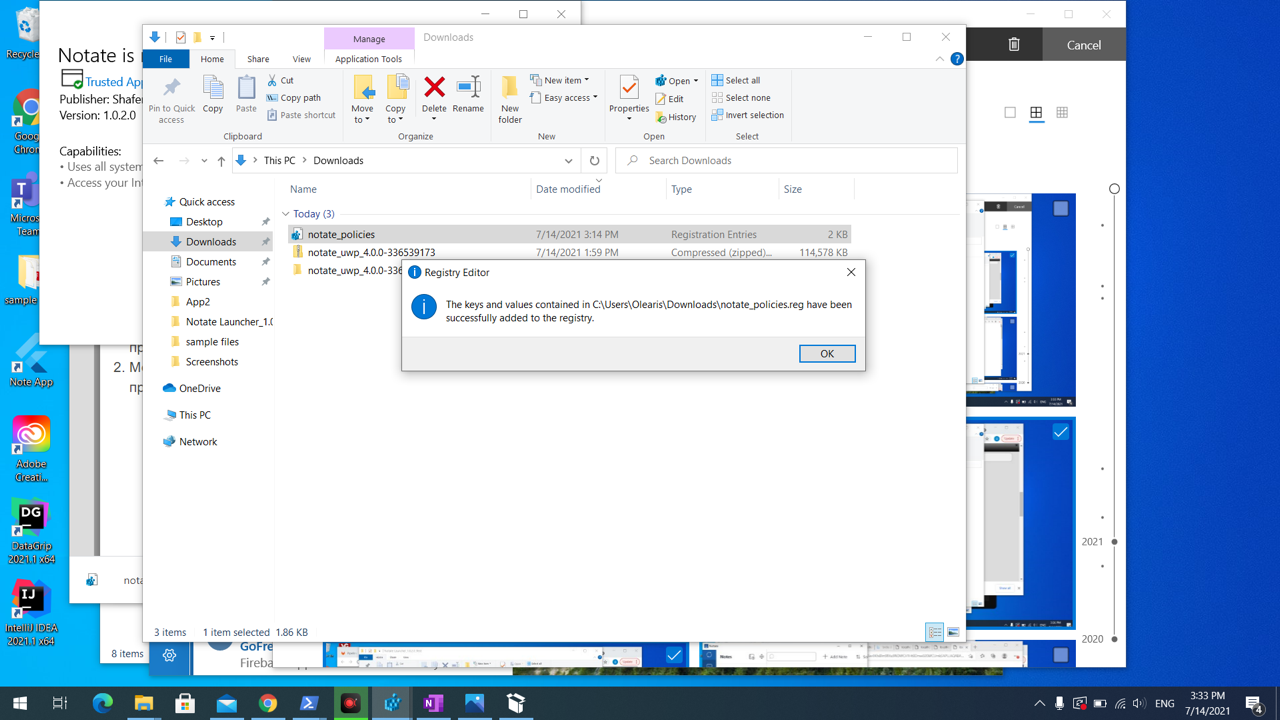
3. Click to run the registry file which you edited in step 1
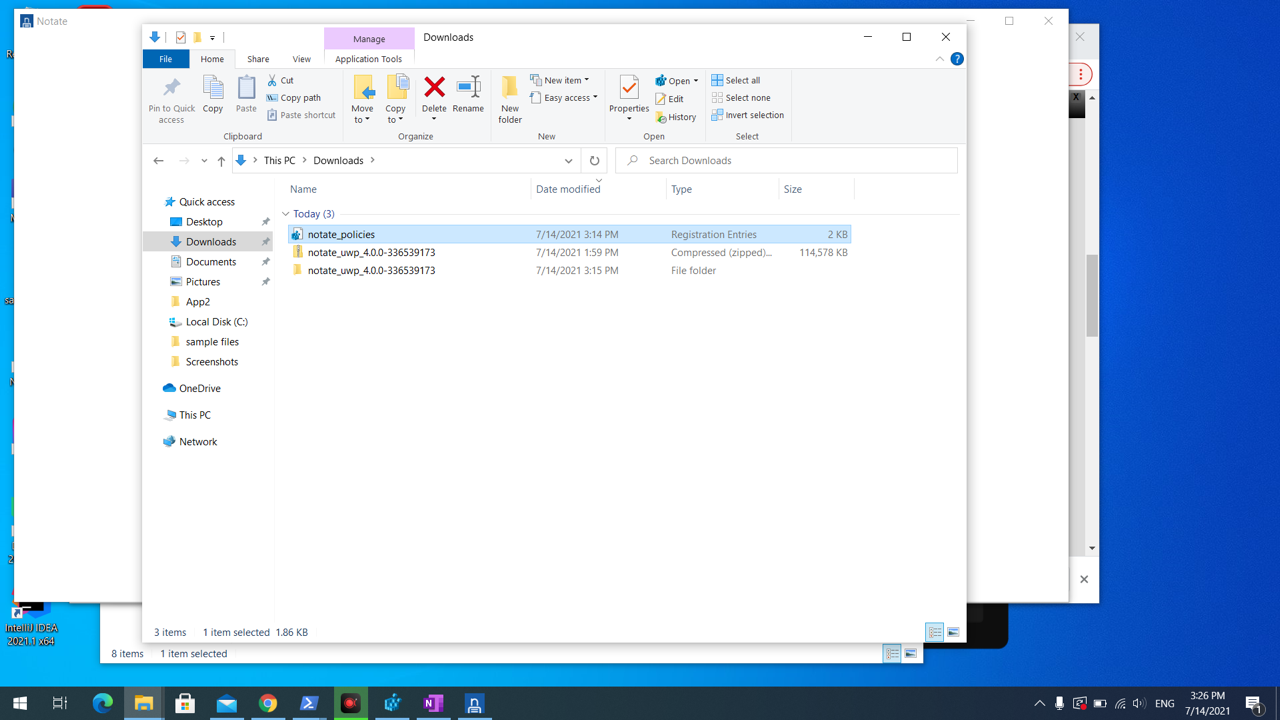
4. Select “Run”
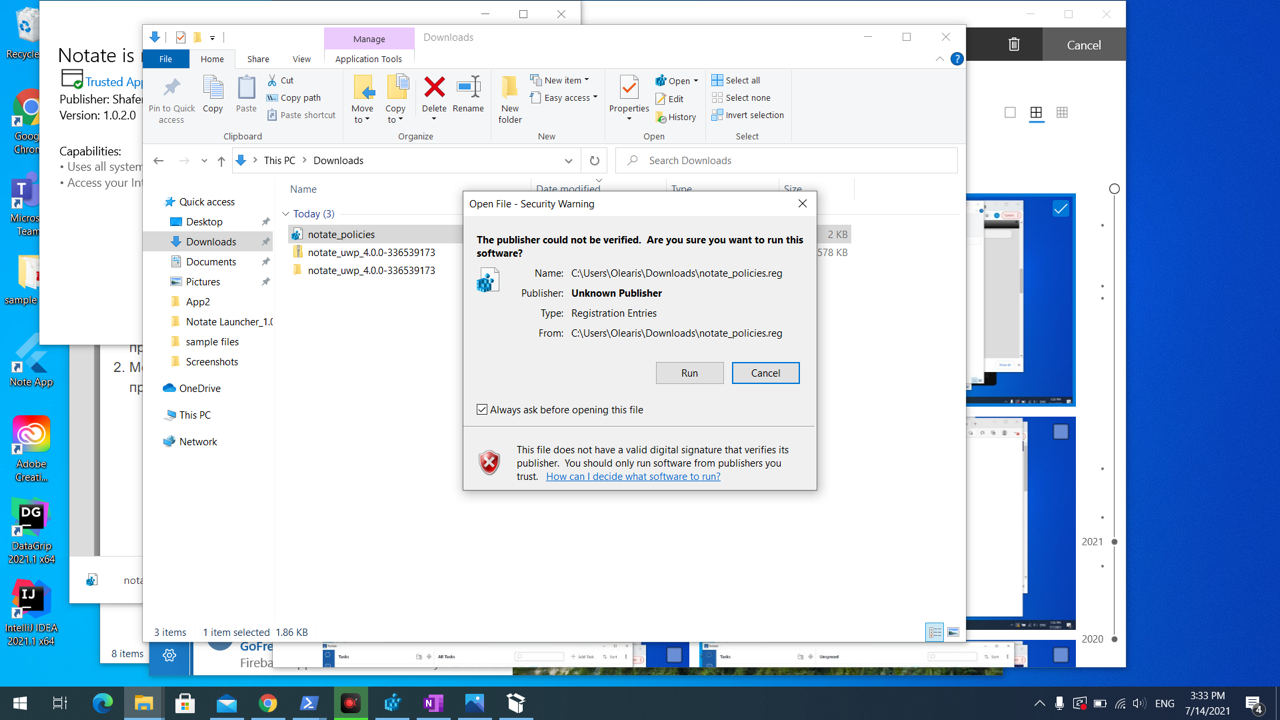
5. Select “Yes” to install the registry file
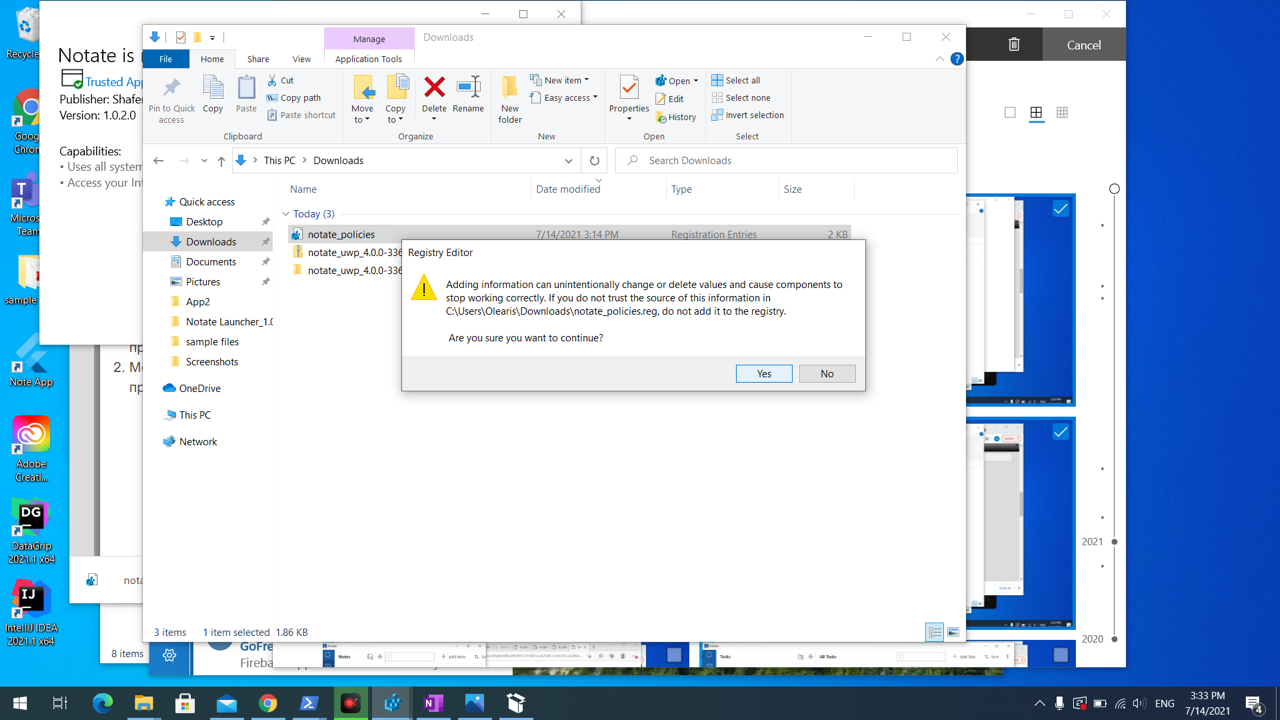
6. Select “Ok” - licensing key was added to the Registry and syncing should be working in Notate now