
A digital signature in Notate is more than a drawing on the page. The user's visible signature is backed by their user certificate, so anyone who opens the PDF can validate both the signer as well as whether the document has been tampered with after signing. Signatures made in Notate open and validate in Adobe Acrobat and other standard PDF readers.
For IT administrators. This guide covers how to let Notate users digitally sign PDFs, how to get each user's signing certificate into Notate on your MDM, and what users and document recipients see.
At a glance. Three prerequisites for secure signing:
-
You are licensed for digital signatures with Notate Enterprise.
-
The policy
allowDigitalSignatureis on (it is on by default). -
The user's signing certificate reaches Notate. How this happens depends on your MDM, and requires configuration. See Choose your certificate path.
Prerequisites
|
Requirement |
Details |
|---|---|
|
Managed Notate app on iPhone or iPad |
Deployed through BlackBerry UEM, Microsoft Intune, Ivanti (formerly MobileIron), or an AppConfig MDM such as SOTI MobiControl. See Where digital signatures are available. |
|
A Notate Enterprise license key |
The key must include digital signatures. Keys issued before digital signatures were released (February 2025) may not; ask Shafer Systems for a current key. |
|
A certificate authority (CA) |
Your organization's PKI issues one signing certificate per user. Notate does not issue certificates. |
|
A signing certificate per user |
RSA key (2048-bit or larger), SHA-256, Key Usage Digital Signature. Details under Certificate requirements. |
|
Trust on the computers that check signatures |
The computers and readers that will validate signed PDFs must trust your root CA and any intermediate CA. See Making signatures show as valid. |
Where digital signatures are available
|
Notate build |
Digital signatures |
How the certificate reaches Notate |
|---|---|---|
|
Notate for BlackBerry (iOS; Android) |
Yes |
From BlackBerry UEM. |
|
Notate Enterprise (AppConfig) on iOS 18.4 or later, on an MDM that supports Apple's managed app identity (for example SOTI MobiControl) |
Yes |
From an MDM supporting Apple’s managed app identity. |
|
Notate for Intune |
Yes |
The user imports a |
|
Notate for Ivanti (MobileIron) |
Yes |
The user imports a |
|
Notate Enterprise (AppConfig) on iOS earlier than 18.4 |
Yes |
The user imports a |
|
Notate for Citrix |
Not available |
|
|
Notate for Web, Notate Desktop, Notate for Android outside BlackBerry |
Not available |
|
Choose your certificate path
|
Your MDM |
Path |
User effort |
Section |
|---|---|---|---|
|
BlackBerry UEM |
BlackBerry signs on Notate's behalf with the user's certificate in BlackBerry Dynamics |
None |
Path 1: BlackBerry UEM |
|
An MDM that supports Apple's managed app identity, such as SOTI MobiControl |
Your MDM gives Notate the user's identity (certificate and private key) |
None |
Path 2: Apple managed app identity, and Appendix: SOTI MobiControl |
|
Microsoft Intune or Ivanti |
You send each user a |
One-time import |
Path 3: Certificate import |
Certificate requirements
These apply to every path. Build them into the certificate template on your CA.
|
Setting |
Value |
Why |
|---|---|---|
|
Key type |
RSA, 2048-bit or larger |
Notate signs with RSA. EC (elliptic-curve) keys fail at signing on paths 2 and 3. Apple's SCEP payload supports RSA only. |
|
Signature hash |
SHA-256 |
SHA-1 and MD5 are refused. |
|
Key Usage |
Digital Signature and Non-Repudiation |
Notate does not check Key Usage itself, but Acrobat and other readers do. |
|
Extended Key Usage (optional) |
If your policy uses EKU, include Adobe Authentic Documents (1.2.840.113583.1.1.5) and Document Signing (1.3.6.1.5.5.7.3.36), and Microsoft Document Signing (1.3.6.1.4.1.311.10.3.12) if you use it |
Acrobat may refuse a certificate whose only EKU it does not accept. Test one signature in Acrobat before rollout. |
|
Subject |
The individual user's name and email address (CN, plus email in the subject or Subject Alternative Name) |
This is the name readers show as the signer. |
|
Validity |
Your policy. Plan renewal before expiry. |
An expired certificate cannot sign. |
Policy keys
Deliver these application policies through your MDM. Key names are case-sensitive.
|
Key |
Type |
Default |
Purpose |
|---|---|---|---|
|
|
Boolean |
true |
Master switch. Set to false to turn digital signing off. |
|
|
String |
empty |
For MDMs supporting Apple’s managed app identity. The identifier of the signing identity your MDM gives to Notate. Must match the MDM's identifier exactly, including upper and lower case. |
Path 1: BlackBerry UEM
On BlackBerry, the user's signing certificate stays inside BlackBerry Dynamics. When the user signs, Notate asks BlackBerry Dynamics to sign, and BlackBerry signs with the user's private key. Notate never receives the key.
-
Issue user certificates. In BlackBerry UEM, go to Policies and profiles > Certificates > User credential and add a profile, or use a SCEP profile. A user credential profile can get certificates from your CA through a BlackBerry Dynamics PKI connector, from Entrust, or from a certificate you upload for the user. Use per-user values in the subject, for example
%UserEmailAddress%in the Subject Alternative Name. Assign the profile to your Notate users. ACME profiles do not work for BlackBerry Dynamics apps. -
Let Notate use the certificates. Go to Apps, open Notate, then Settings > BlackBerry Dynamics, and select Allow BlackBerry Dynamics apps to use user certificates, SCEP profiles, and user credential profiles.
-
Check the Notate policy. In the Notate app configuration in UEM, Digital Signatures (
allowDigitalSignature) is on by default. Confirm your license key includes digital signatures.
Notate lists every valid user certificate that BlackBerry Dynamics marks as usable for signing, and the user chooses one when signing.
Path 2: Apple managed app identity (SOTI MobiControl and other MDMs)
Since iOS 18.4, Apple lets an MDM give a managed app its own certificate and private key, called a managed app identity. The MDM declares the identity for the app with an identifier, and the device gets the certificate directly from your CA through SCEP or ACME, or the MDM supplies it. Notate asks iOS for the identity by that identifier.
Requirements: Notate Enterprise (the AppConfig build), iPhone or iPad on iOS or iPadOS 18.4 or later, Notate installed and managed by your MDM, and an MDM that supports managed app identities through Apple's declarative device management. On SOTI MobiControl, see Appendix: SOTI MobiControl for the console steps.
Step 1: Create the certificate template
In your MDM, set up a SCEP or ACME certificate template, connected to your CA, that meets the Certificate requirements above. The subject must use per-user values (the user's name and email address), not the device name.
Step 2: Give the identity to Notate
In your MDM's managed app configuration for Notate, add the certificate template as an identity for the app and give it a fixed identifier of your choosing, for example NotateSigning.
Step 3: Point Notate at the identity
In Notate's app configuration, set digitalSignatureIdentityID to that identifier, exactly as you typed it in Step 2.
<string keyName="digitalSignatureIdentityID">
  <defaultValue><value>NotateSigning</value></defaultValue>
</string>
Step 4: Check on one device
Assign the configuration to a test device, open a PDF in Notate, and sign it (see What users see). If the certificate list is empty, see Troubleshooting.
Notate uses exactly the one identity named in digitalSignatureIdentityID. To move users to a new certificate, update the template or identity in your MDM and keep the same identifier.
Path 3: Certificate import (MDMs not yet supporting Apple managed app identity - e.g. Intune, Ivanti, etc.)
These MDMs cannot yet give a third-party app the private key of a certificate they install, so the user imports their certificate into Notate once. Notate stores it in its own protected keychain inside the managed app.
Step 1: Export each user's certificate as a .p12 file
From your CA, export the user's certificate with its private key as a password-protected PKCS#12 file. Give the file the extension .p12. Notate does not recognize .pfx; rename a .pfx file to .p12 before you send it.
Include only the one signing certificate in each file. Notate imports the first identity it finds.
Step 2: Send the file to the user
Email the .p12 file to the user's work mailbox as an attachment. Give them the password through a different channel, for example by phone or text message, never in the same email.
Step 3: The user imports it in Notate
-
In Notate, the user opens the
.p12attachment from Email Attachments. -
Notate asks for the password ("Enter the password for certificate").
-
Notate confirms with "Certificate imported successfully".
The certificate is now available when the user signs.
Replacing or removing a certificate
Importing a renewed certificate adds it to the list. Notate does not yet have a way to delete an imported certificate; to clear all imported certificates, remove and reinstall Notate.
Making signatures show as valid
Notate puts the user's certificate inside each signature. It does not include your intermediate or root CA certificates. The signature carries the device's time.
For a reader such as Adobe Acrobat to show the signature as valid, the computer opening the PDF must trust your full CA chain (root and every intermediate CA):
-
Put the root and intermediate CA certificates in the Windows certificate store. On managed computers this is usually already done through Group Policy.
-
Tell Acrobat to trust Windows certificates when validating signatures: Preferences > Security > Advanced Preferences > Windows Integration. To set this centrally, use the registry value
iMSStoreTrusted=0x60under Acrobat'sSecurity\cASPKI\cMSCAPI_DirectoryProviderkey.
A certificate from your own CA will not be on Adobe's public trust list, so recipients outside your organization see the signer as unknown until they trust your CA chain.
Inside Notate, a signed document opens with a banner, for example "This document is digitally signed, and all signatures are valid."
What users see
-
First time. The first time a user opens Notate with digital signatures on, a short notice explains what digital signatures do. The user taps Got it.
-
Create the signature. The user opens a PDF, taps the editor button, chooses Sign Document, and draws, types or imports their signature, then places it on the page.
-
Convert it. The user taps Convert to Digital Signature.
-
Choose the certificate. Notate lists the user's certificates. On path 2 there is only one. A user with a single certificate can choose to skip this step next time.
-
Sign. The user reviews the details and taps Sign. Notate signs the document and places the visible signature.
Anyone who opens the document can tap the signature to see the signer, the signing time, the certificate, and whether the document has changed since signing.
The full user walkthrough with screenshots is in Digital signatures (Notate User Guide)
Troubleshooting
|
What the user sees |
Likely cause |
Fix |
|---|---|---|
|
Tapping the digital signature tool shows "Digitally Sign with Confidence!" with GET IT NOW! |
|
Turn the policy on. Ask Shafer Systems for a current license key. Check Where digital signatures are available. |
|
The certificate list is empty (BlackBerry) |
No valid signing certificate in BlackBerry Dynamics for this user, or Notate is not entitled to it |
Check the certificate profile assignment in UEM and that the certificate has not expired. |
|
The certificate list is empty (path 2) |
|
Set the key. Update the device. |
|
The user taps Sign and nothing happens |
The identifier does not match the MDM's, the device has not received the identity yet, or the key is not RSA |
Compare the identifier in your MDM and in |
|
"Permission denied / This functionality has been disabled by your IT administrator." when opening a |
|
Turn the policy on. |
|
"Wrong Password" |
The |
Send the password again. |
|
"Failed to import certificate" |
The file is damaged, has no private key, or is not PKCS#12 |
Export again with the private key included. |
|
A |
Notate recognizes only |
Rename the file to |
|
Acrobat says the signer's identity is unknown or not trusted |
The viewing computer does not trust your CA chain |
Install the root and intermediate CA certificates on that computer. See Making signatures show as valid. |
Raising a support request
Signing errors after the user taps Sign are written to the Notate log rather than shown on screen. Turn on logging (allowLogging), reproduce the problem, and collect the logs as described in How do I enable logging in Notate?. Include your MDM and version, the Notate build and version, the iOS version, and which path you are using.
Quick reference
|
Item |
Value |
|---|---|
|
Policy keys |
|
|
License |
Must include digital signatures; older keys may not |
|
Certificate |
RSA 2048+, SHA-256, Key Usage Digital Signature, per-user subject |
|
Apple managed app identity |
Notate Enterprise, iOS 18.4+, SCEP or ACME template declared as an app identity, identifier = |
|
BlackBerry |
User certificate in BlackBerry Dynamics, available to Notate |
|
Import |
|
|
Validation |
Viewers need your full CA chain; no timestamp is added |
Appendix: SOTI MobiControl
SOTI MobiControl supports managed app identities for iOS apps from version 2026.1, with certificates issued through SCEP or ACME templates. SOTI does not deliver intermediate or root CA certificates to the app this way; see Making signatures show as valid.
-
Certificate template. In MobiControl, go to Global Settings > Services > Certificate Authority. Set up your CA connection and a SCEP or ACME template that meets the Certificate requirements.
-
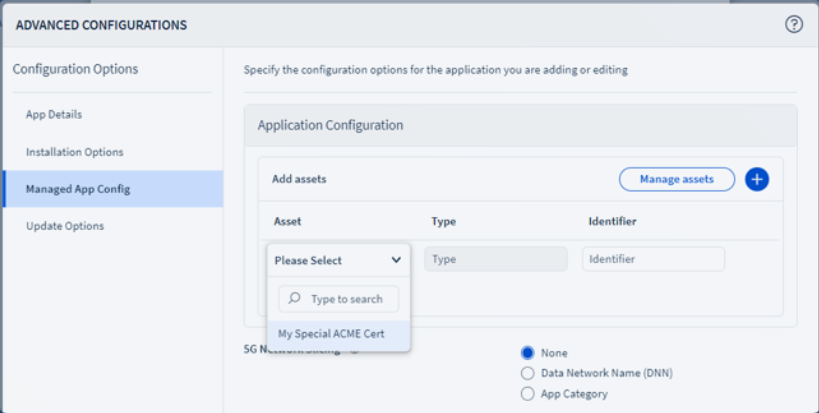
Add the identity to Notate. Open the Notate app in your app policy and go to Advanced Configurations > Managed App Config. Under Application Configuration > Add assets, choose your certificate template as the Asset and type a fixed Identifier, for example
NotateSigning. (Manage assets lists the templates you can choose.) -
Set the Notate policy. In the same managed app configuration, set
digitalSignatureIdentityIDto the same identifier.