

A digital signature is your visible signature plus your personal signing certificate. Anyone who opens the PDF can check who signed it and whether it has changed since you signed. Digitally signed PDFs open and validate in Adobe Acrobat and other PDF readers.
Digital signatures are part of Notate Enterprise on iPhone and iPad. Your organization decides whether they are available to you.
On this page
-
Before you start: your certificate
-
Signing a document
-
Checking a signed document
-
If something doesn't work
-
Good habits
Before you start: your certificate
To sign digitally, Notate needs your signing certificate. Your IT department provides it in one of two ways:
|
How your organization does it |
What you do |
|---|---|
|
Automatically, through your organization's device management |
Nothing. Your certificate is already in Notate. |
|
By email, as a certificate file ending in |
Import it once, as described below. |
If you're not sure which applies to you, ask your IT department.
Importing a certificate file
-
Your IT department emails you a file ending in
.p12, and gives you its password separately, for example by phone. -
In Notate, open Email Attachments and tap the
.p12file. -
Enter the password and tap OK.
-
Notate confirms with Certificate imported successfully.
You only do this once. When your certificate is renewed, IT sends you a new file and you import it the same way.
Signing a document
-
Open the PDF and tap Markup to show the markup toolbar.
-
Create your signature. Choose Signature. Draw your signature with Apple Pencil or your finger, choose Image to use a picture of your signature, or choose Type to type your name in a handwriting style. You can set the pen thickness and color. Place the signature on the page, then move and resize it with the handles.
-
Make it digital. With the signature selected, tap Convert to Digital Signature (the seal button in the signature's options).
-
Choose your certificate. Notate shows the certificates you have. If you have only one, you can choose to skip this step next time.
-
Sign. Check the details and tap Sign. Notate signs the document and keeps your visible signature on the page.
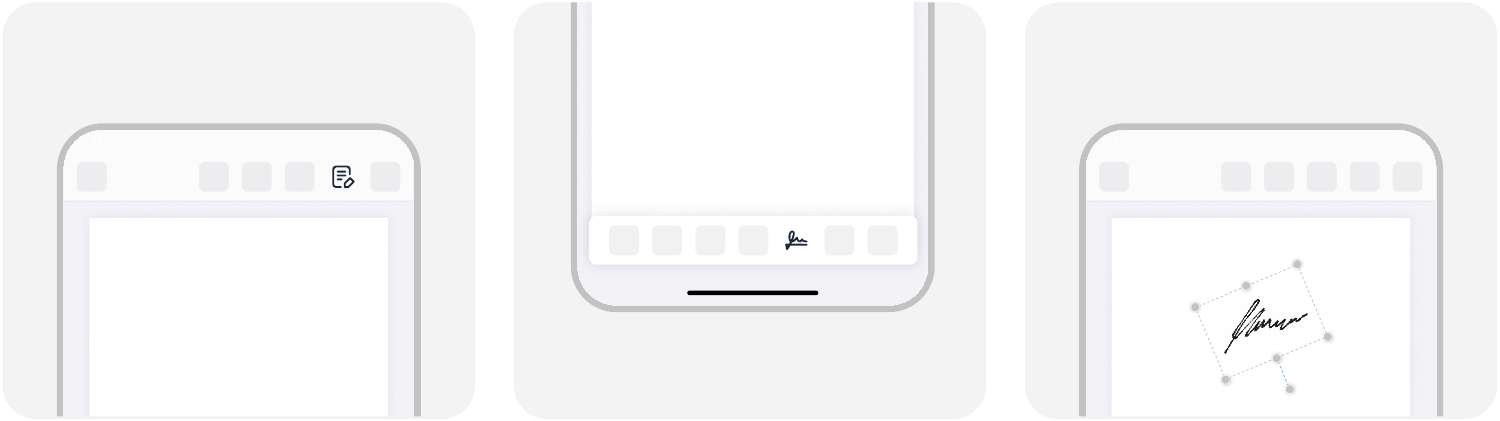
Open the markup toolbar, choose Signature, and place your signature on the page.
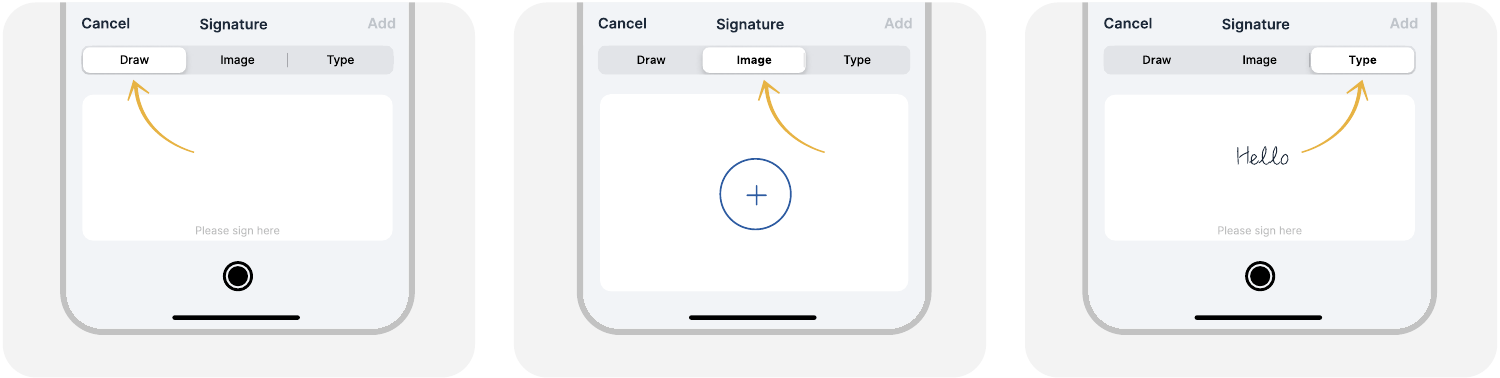
Draw your signature, use an image of it, or type your name.
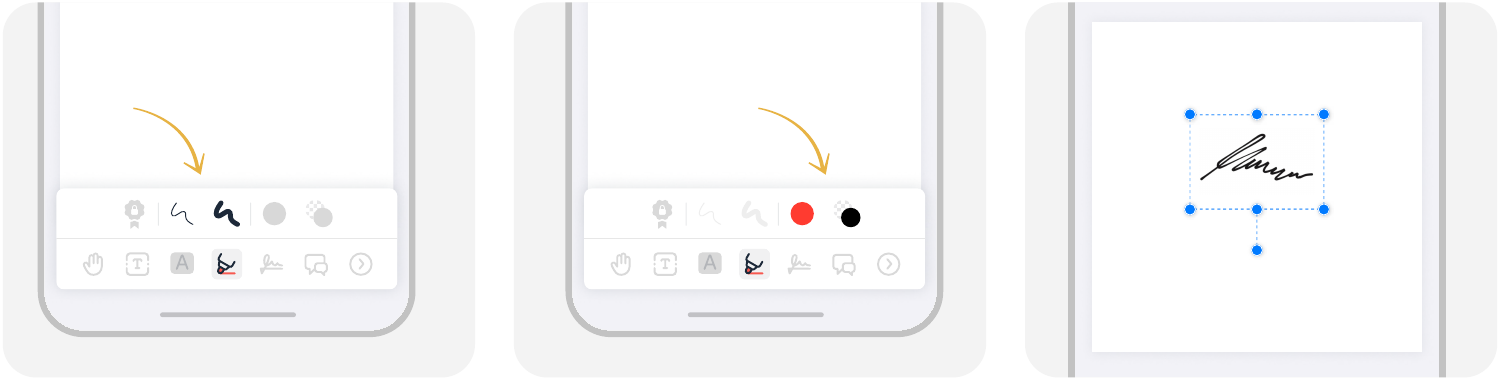
Set the pen thickness and color, and resize the signature.
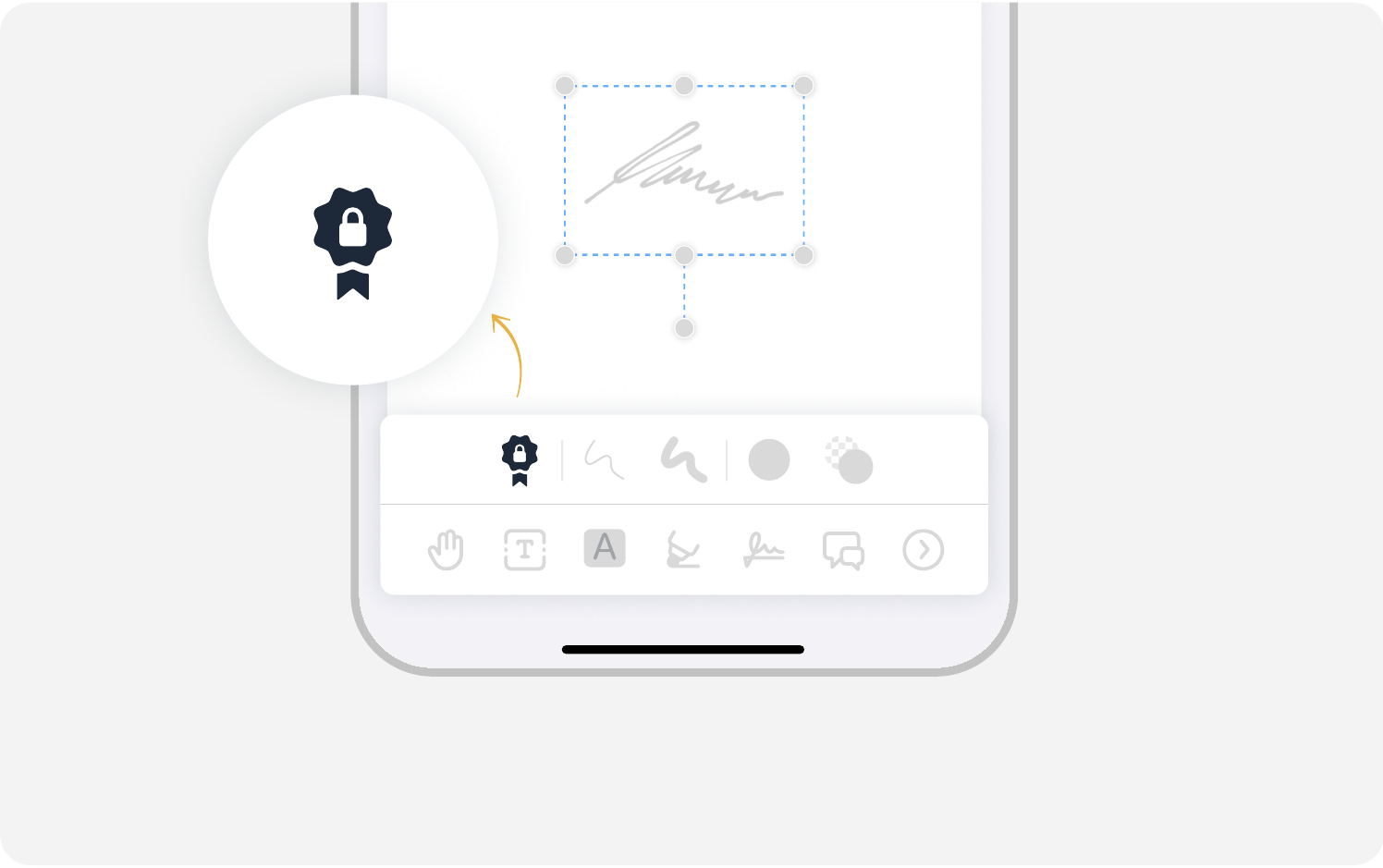
With the signature selected, tap the seal button to convert it to a digital signature.
Sign last. Any change to the document after you sign shows up as a change since signing.
The first time. The first time you open Notate with digital signatures turned on, a short notice explains what they do. Tap Got it! to continue; it does not appear again.
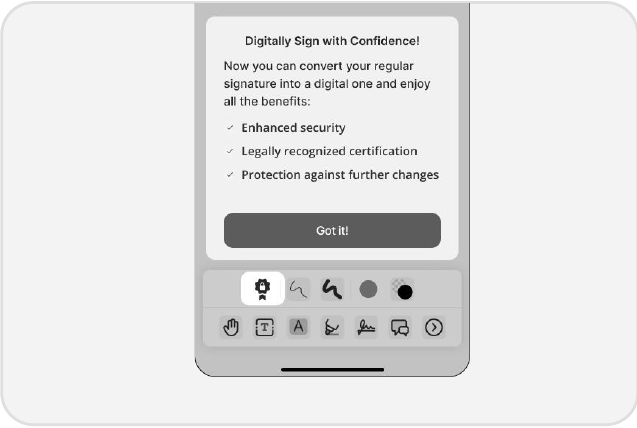
The notice you see the first time.
Checking a signed document
When you open a digitally signed PDF in Notate, a banner at the top tells you its status:
|
Banner |
What it means |
|---|---|
|
This document is digitally signed, and all signatures are valid. |
Every signature checks out, and the document has not changed since signing. |
|
...modified since signing. |
Someone changed the document after it was signed. |
|
...at least one signature is invalid or cannot be verified. |
A signature failed its check, or Notate cannot confirm the signer's certificate. |
Tap a signature to see who signed, when, with which certificate, and whether the document has changed since.
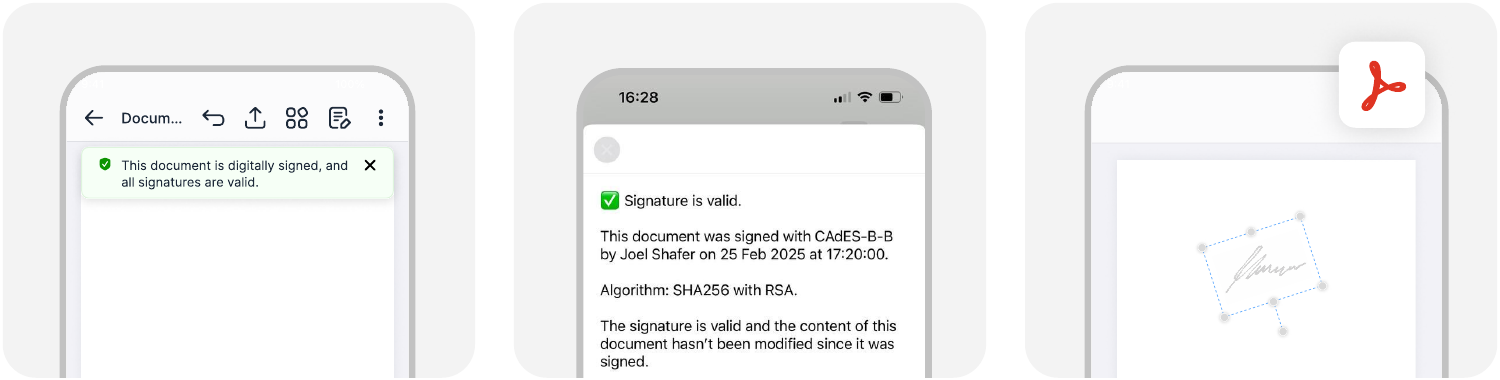
The banner in Notate, the signature details, and the same document in Adobe Acrobat.
In Adobe Acrobat, open the Signature Panel to see the same information. If Acrobat says the signer's identity is unknown, the computer you are using does not yet trust your organization's certificates. That is a setting for your IT department, not a problem with the signature.
If something doesn't work
|
What you see |
What to do |
|---|---|
|
Tapping the digital signature button shows Digitally Sign with Confidence! with GET IT NOW! |
Digital signatures aren't turned on for you. Ask your IT department. |
|
The list of certificates is empty |
Your certificate hasn't reached Notate yet. Ask your IT department. |
|
You tap Sign and nothing happens |
Ask your IT department, and tell them it happened. They may ask you to send diagnostic logs; see How do I send diagnostic logs to support? |
|
Wrong Password when importing a certificate |
Check the password with your IT department and try again. |
|
Failed to import certificate |
The file may be damaged. Ask your IT department to send it again. |
|
Permission denied when opening a certificate file |
Your organization has turned digital signatures off. Ask your IT department. |
Good habits
-
Read the whole document before you sign.
-
Keep your certificate password to yourself. Once you have imported the certificate, delete the email it came in.
-
Sign only after all other changes are made.