

Signing in, finding your way around, and the settings you can change.
On this page
Signing in
The first time you open Notate, tap Office 365 or Exchange and sign in with your work account. Notate connects to your organization's Microsoft 365 or Exchange server and syncs your notes and documents. Depending on how your organization manages devices, you may also see a sign-in or PIN screen from your organization's device management app first.
Finding your way around
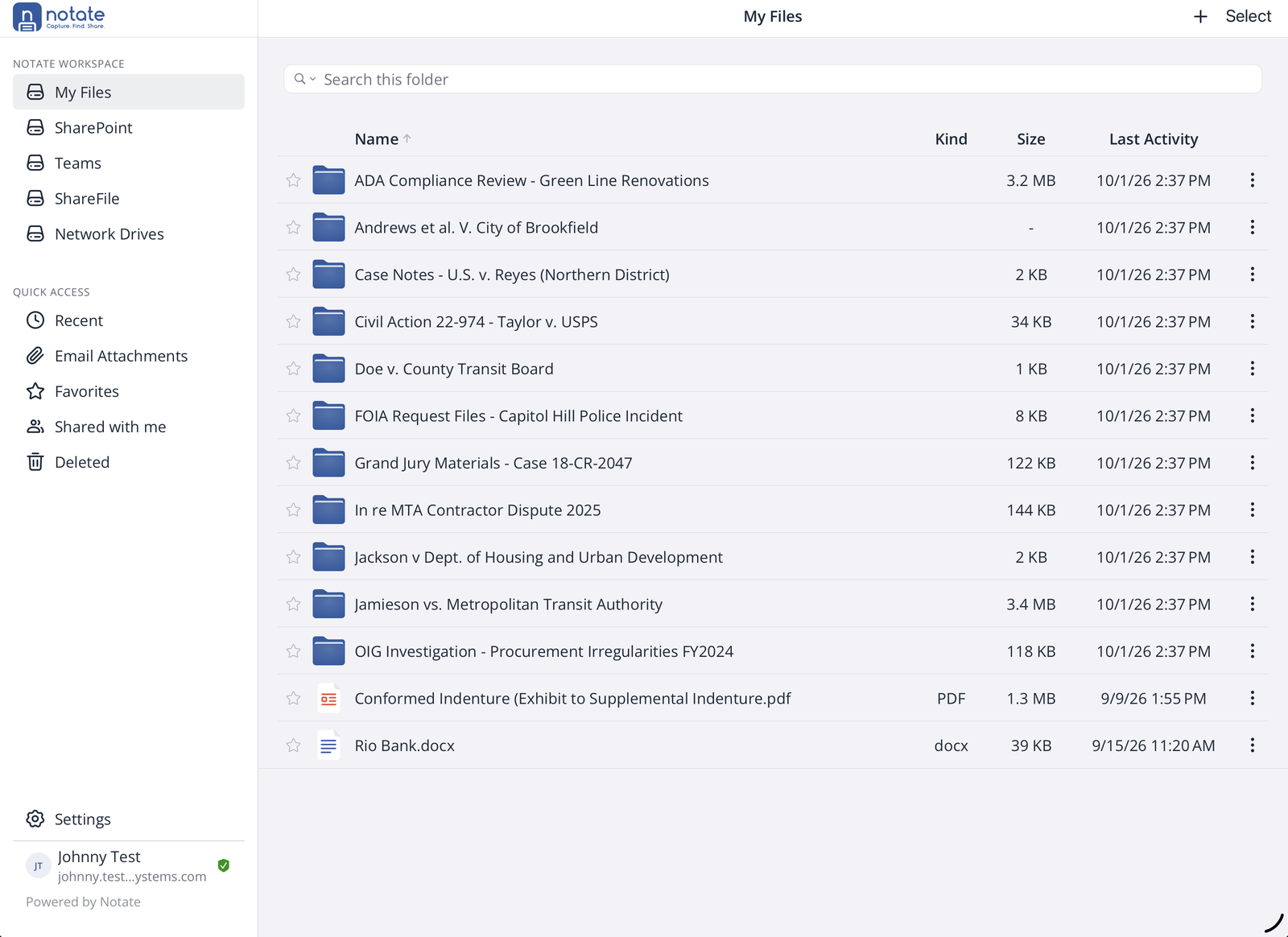
On iPad, the sidebar on the left lists everywhere you can find documents, and the folder or document you open appears on the right. On iPhone the same screens are stacked: tap to go in, and tap back to return.
Notate Workspace
Your storage locations. Your organization decides which ones appear.
|
Location |
What it holds |
|---|---|
|
My Files |
Your Notate Drive: this is home for your notes and documents. |
|
OneDrive |
The rest of your OneDrive. |
|
SharePoint |
SharePoint sites and document libraries you have access to. |
|
Teams |
Files in your Microsoft Teams channels. |
|
ShareFile |
Citrix ShareFile folders. |
|
Network Drives |
Your organization's file shares. |
You can open and edit your Notate files in OneDrive with other apps too. Just leave the .notate folder inside Notate Drive alone: it holds Notate's own settings.
Quick Access
|
View |
What it shows |
|---|---|
|
Recent |
Files you've opened lately, from every location. |
|
Email Attachments |
Attachments from your inbox. |
|
Favorites |
Files and folders you've starred. |
|
Shared with me |
Files colleagues have shared with you in Notate. |
|
Deleted |
Items you've deleted. |
Your name and account are at the bottom of the sidebar, under Settings.
Settings
Tap Settings at the bottom of the sidebar.
General
-
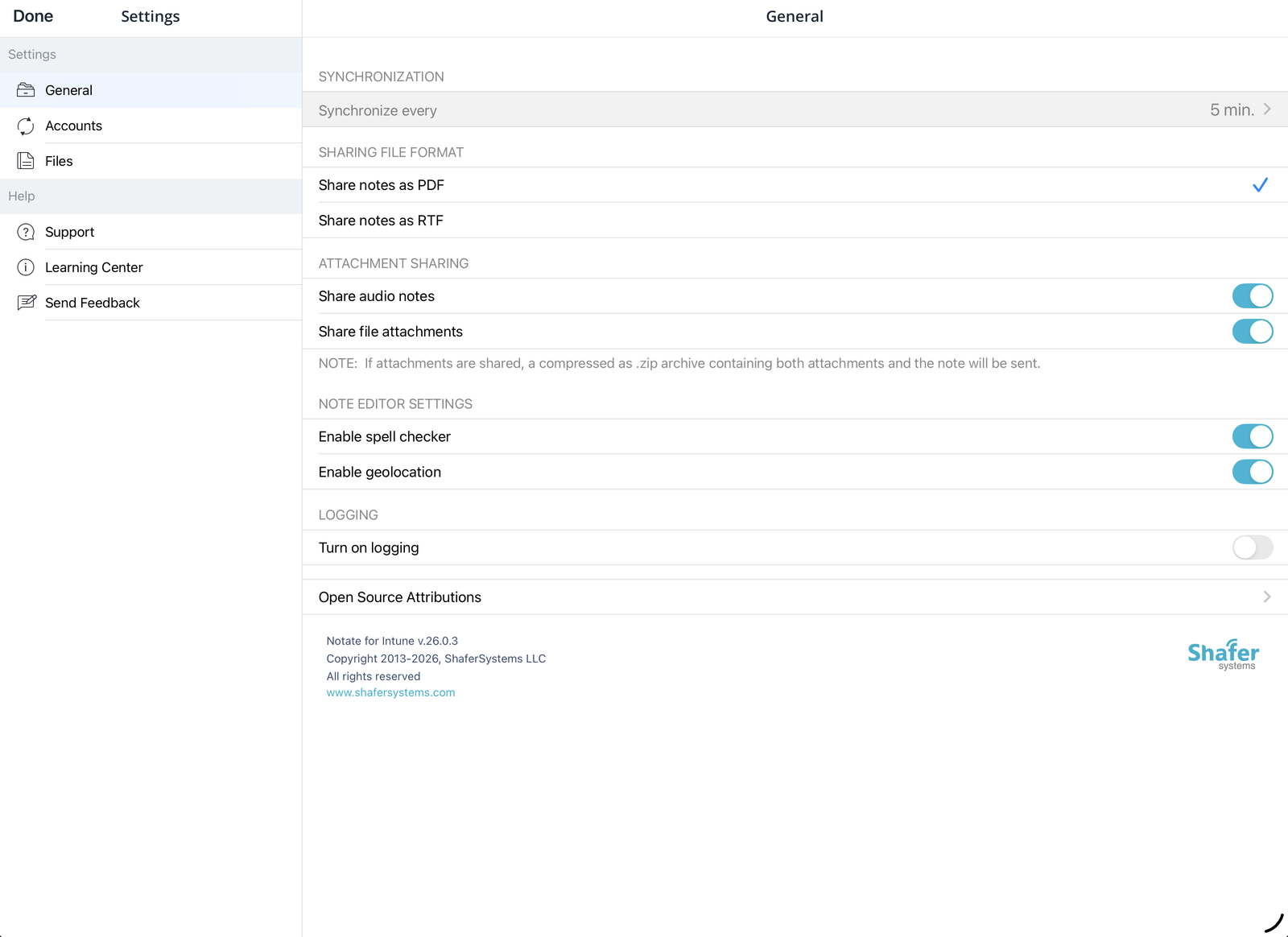
Synchronize every: how often Notate syncs in the background.
-
Sharing file format: whether notes are shared as PDF or RTF.
-
Attachment sharing: whether audio notes and file attachments go with a shared note. If they do, the note and its attachments are sent together as a .zip file.
-
Note editor settings: spell checker and geolocation.
-
Logging: turn on only when our support team asks for a log. See How do I enable logging in Notate?
The version of Notate you're running is shown at the bottom of this screen.
Accounts
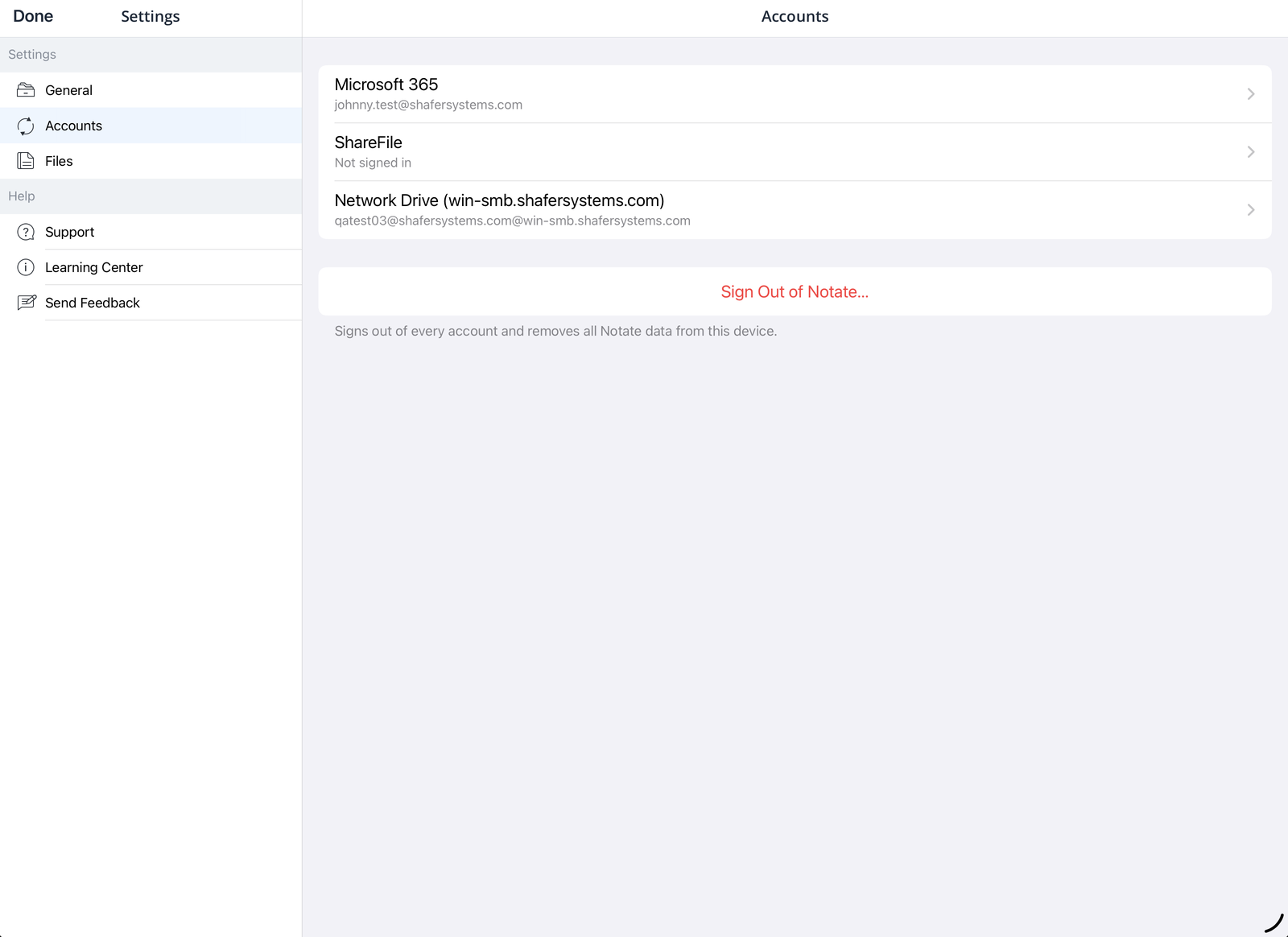
The accounts Notate is signed in to: Microsoft 365, ShareFile and any network drives. Tap one to sign in or out of it.
Sign Out of Notate signs out of every account and removes all Notate data from this device. Make sure your recent changes have synced first.
Files
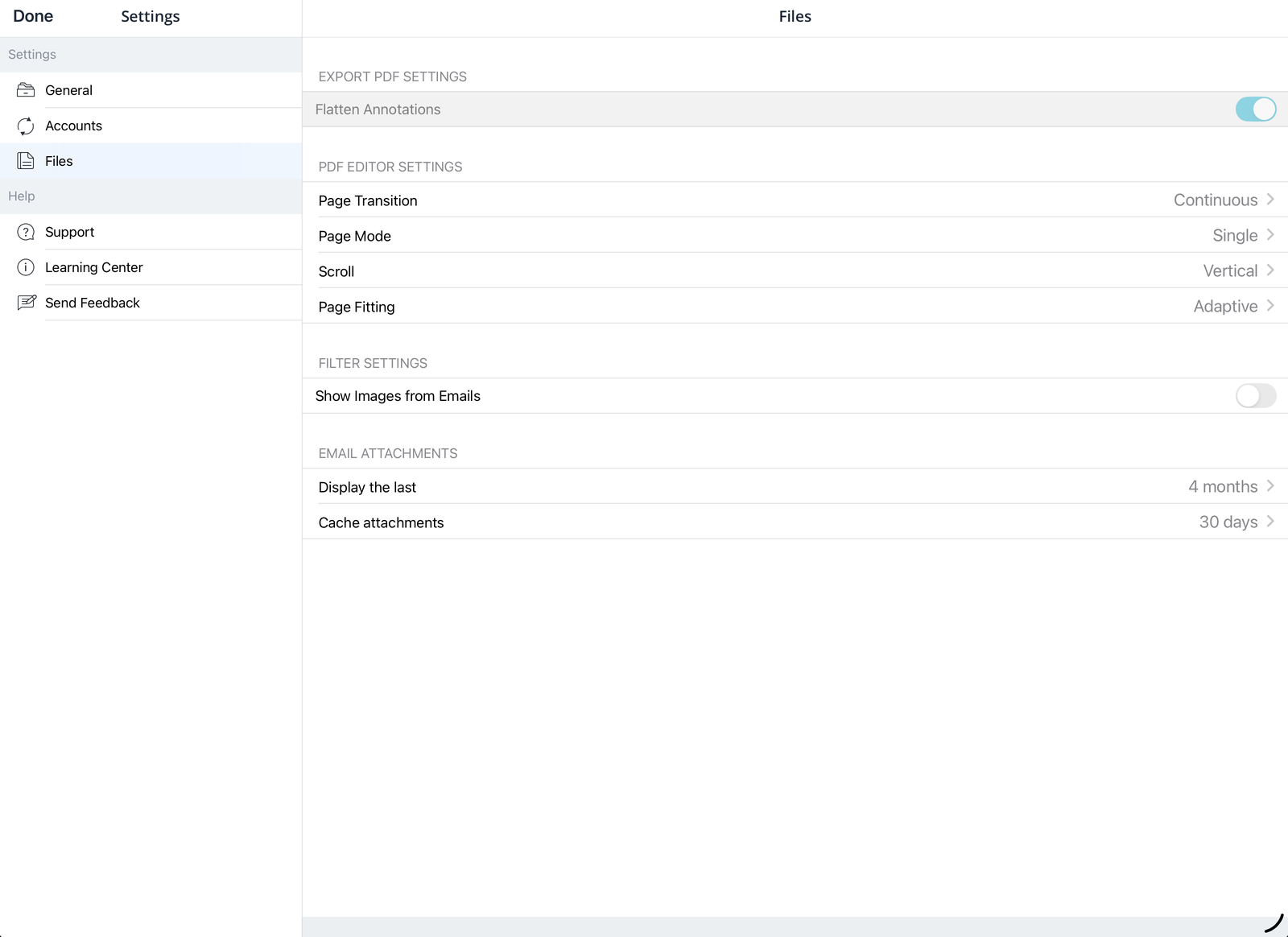
-
Flatten Annotations: when you export a PDF, merge your markup permanently into the pages so the recipient can't change or remove it.
-
PDF editor settings: page transition, single or double pages, scroll direction and page fitting.
-
Show Images from Emails: include images in Email Attachments.
-
Email attachments: how far back Email Attachments goes, and how long opened attachments are kept on the device.
Help
Support and Learning Center open our help resources. Send Feedback emails the Notate team, with your app details attached.