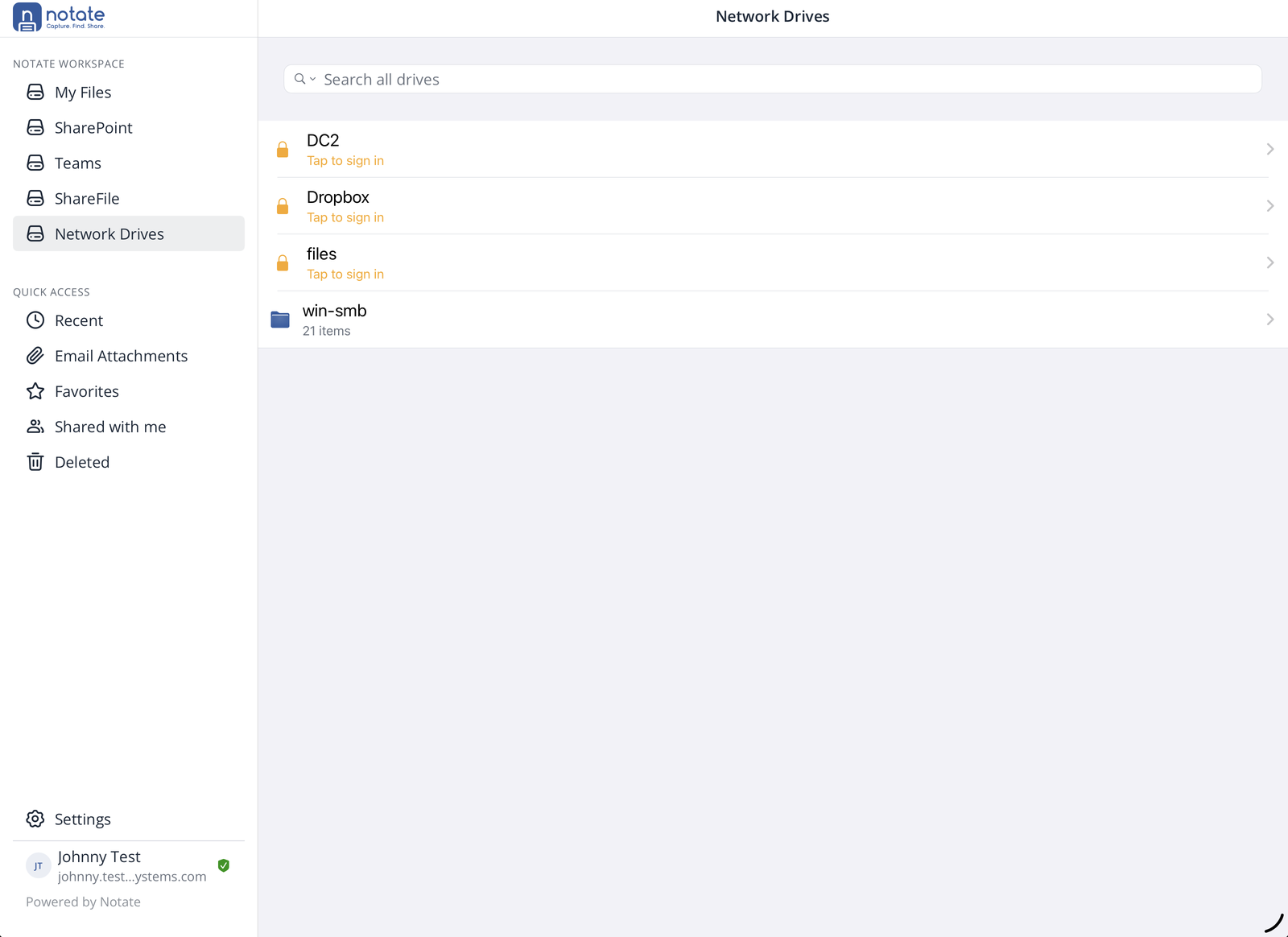

Every document you can reach, in Notate Drive, OneDrive, SharePoint, Teams, ShareFile and your network drives, is browsed, searched and organized the same way. Your notes are here too, alongside your other files.
On this page
Browsing your files
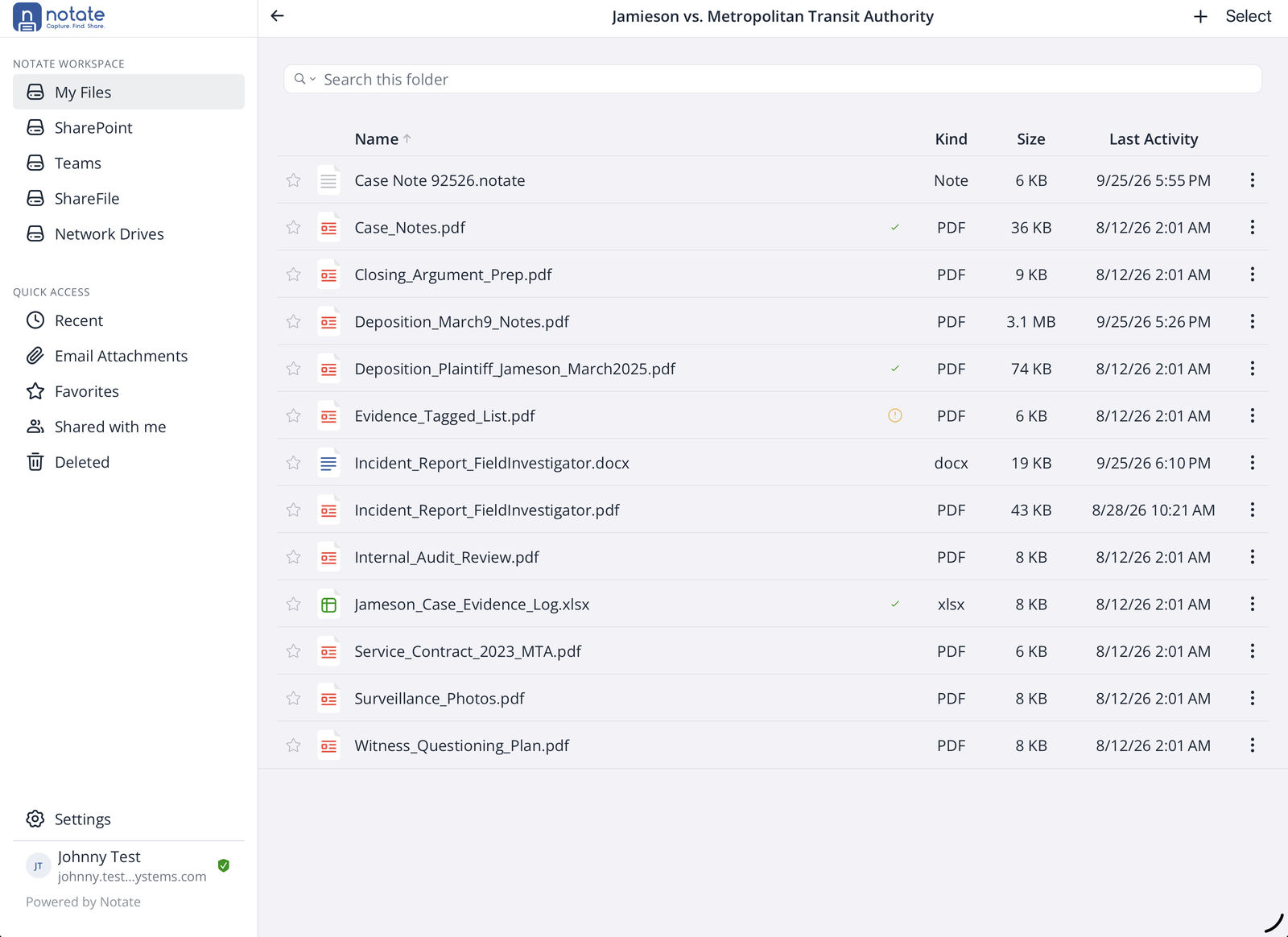
Tap a location in the sidebar, then tap folders to go in and the back arrow to come out. Tap a column heading (Name, Kind, Size, Last Activity) to sort by it.
-
Lists appear straight away from what's on your device, then update in the background. Pull down to refresh.
-
Files download when you open them, not while you browse.
-
A green check beside a file means it's available offline and up to date. An orange mark means the file needs attention, for example a change that hasn't uploaded yet or a conflict; tap it to see what to do.
Tap a file to open it. Notes open in the note editor, PDFs in the PDF editor, and Word, Excel and PowerPoint files in Microsoft Office or Notate's own editor.
Searching your files
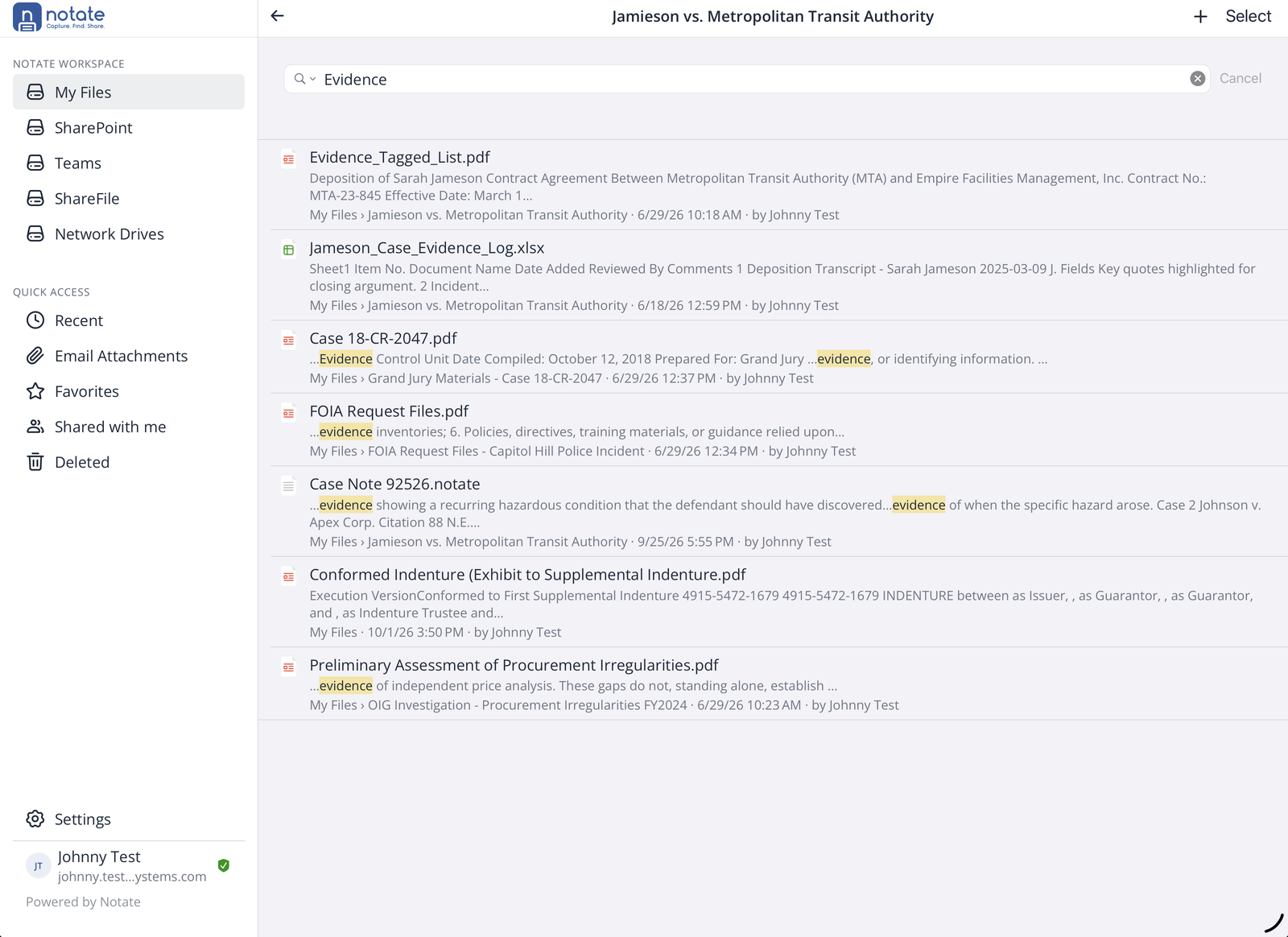
Type in the search box at the top of any folder. Notate searches file names and the text inside your documents and notes. Each result shows the matching text, where the file is, when it changed and who changed it.
In Network Drives, the search box searches all your drives at once.
The file menu
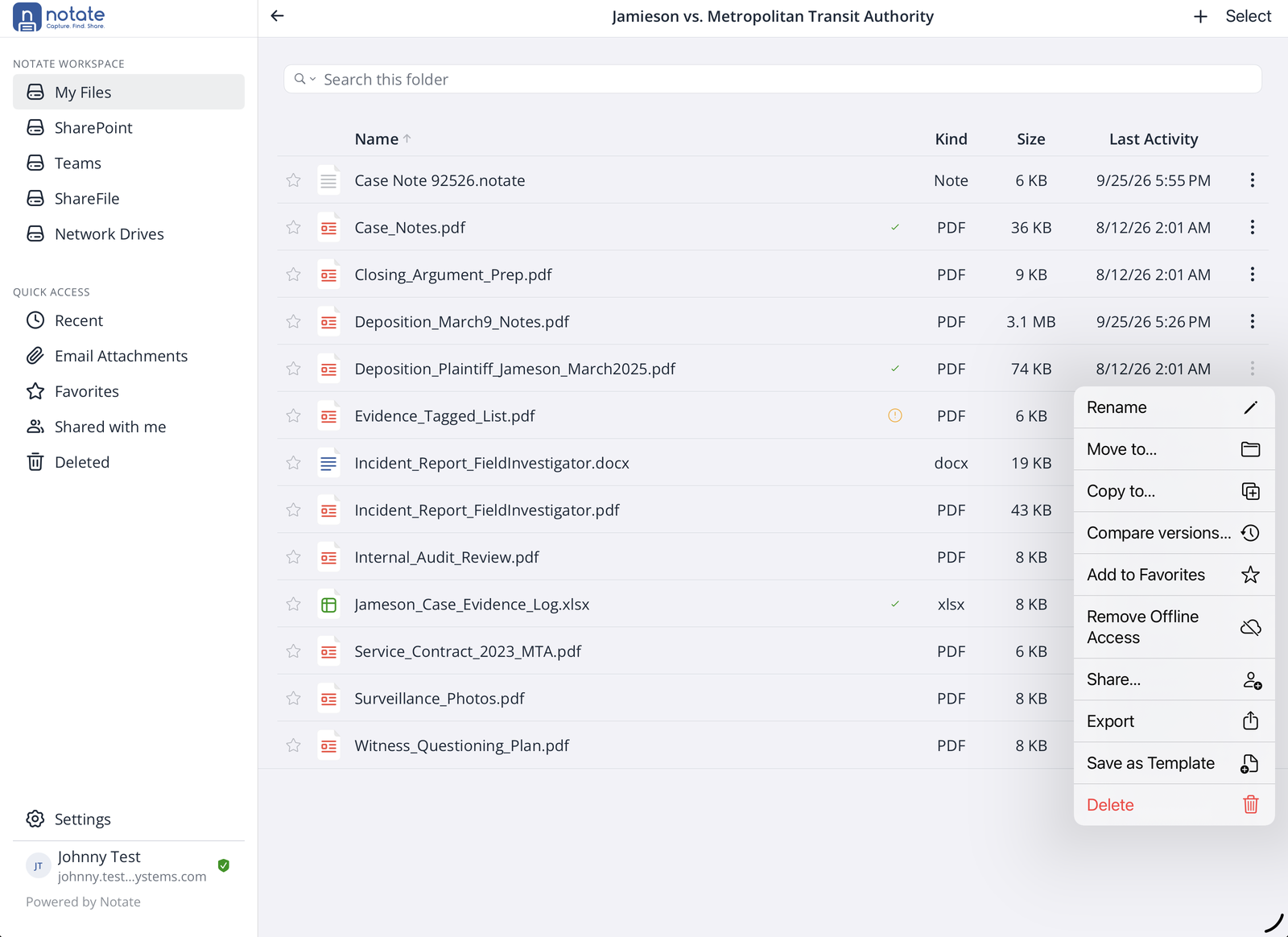
Tap ⋮ at the end of a row, or touch and hold the file.
|
Command |
What it does |
|---|---|
|
Rename |
Renames the file. |
|
Move to… / Copy to… |
Moves or copies it to another folder or location (see below). |
|
Compare versions… |
Shows an earlier version beside the current one. See Comparing versions. |
|
Add to Favorites |
Adds it to Favorites. You can also tap the star at the start of the row. |
|
Make Available Offline / Remove Offline Access |
Keeps a copy on the device so you can open it without a connection. |
|
Share… |
Shares it with a colleague (see below). |
|
Export |
Sends a copy to another app, by email, or to the iOS Files app. |
|
Save as Template |
Makes it a template for new documents. |
|
Delete |
Moves it to Deleted. |
To work on several files at once, tap Select at the top right.
Creating and importing documents
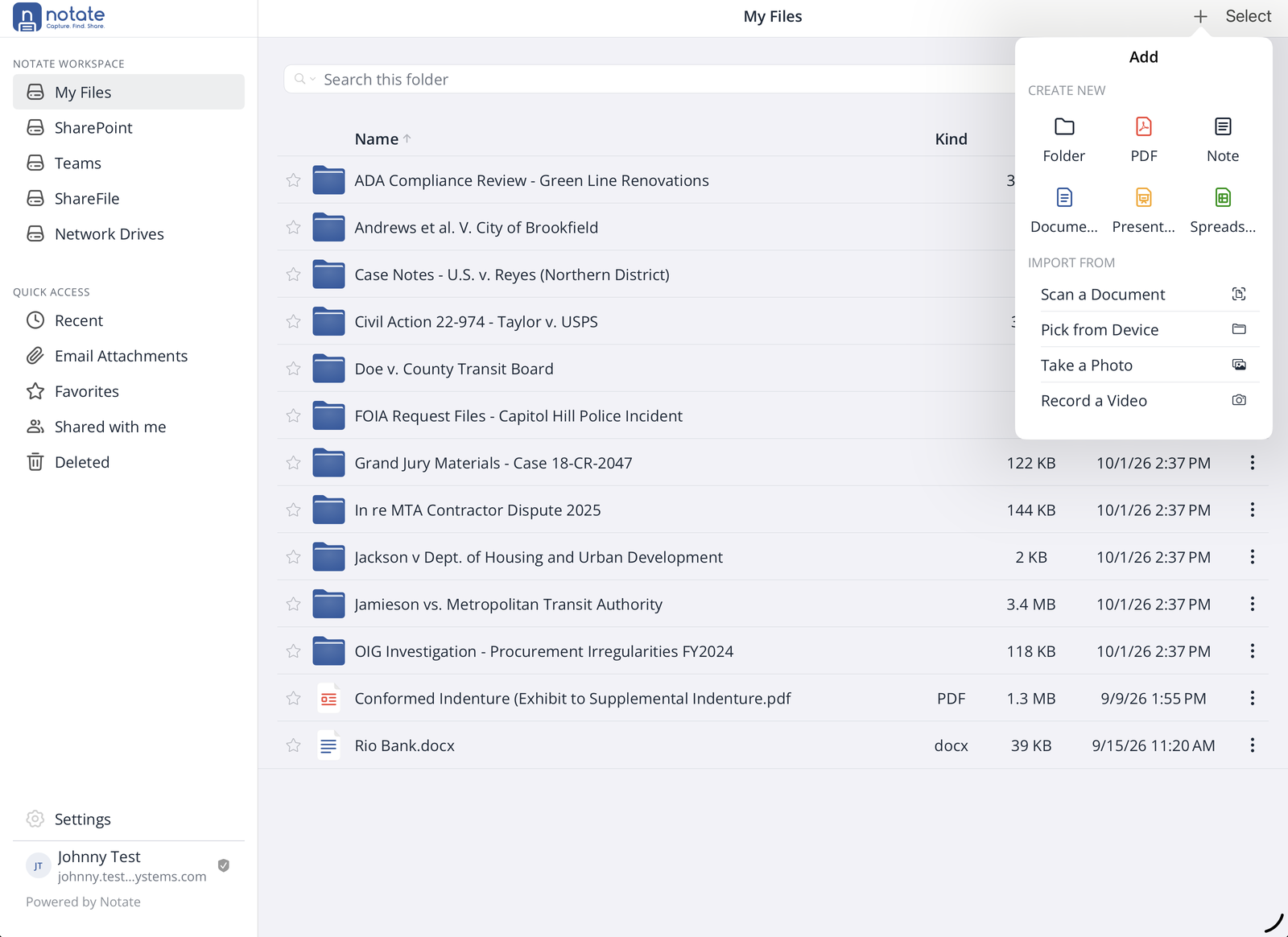
Tap + at the top of a folder.
-
Create new: Folder, PDF, Note, Document (Word), Presentation (PowerPoint) or Spreadsheet (Excel).
-
Import from: scan a document with the camera, pick a file from the device, take a photo, or record a video.
New items are created in the folder you're in. If the name is already taken, Notate adds a number.
Using templates
If there is more than one template for the type you chose, Notate shows them so you can pick one.
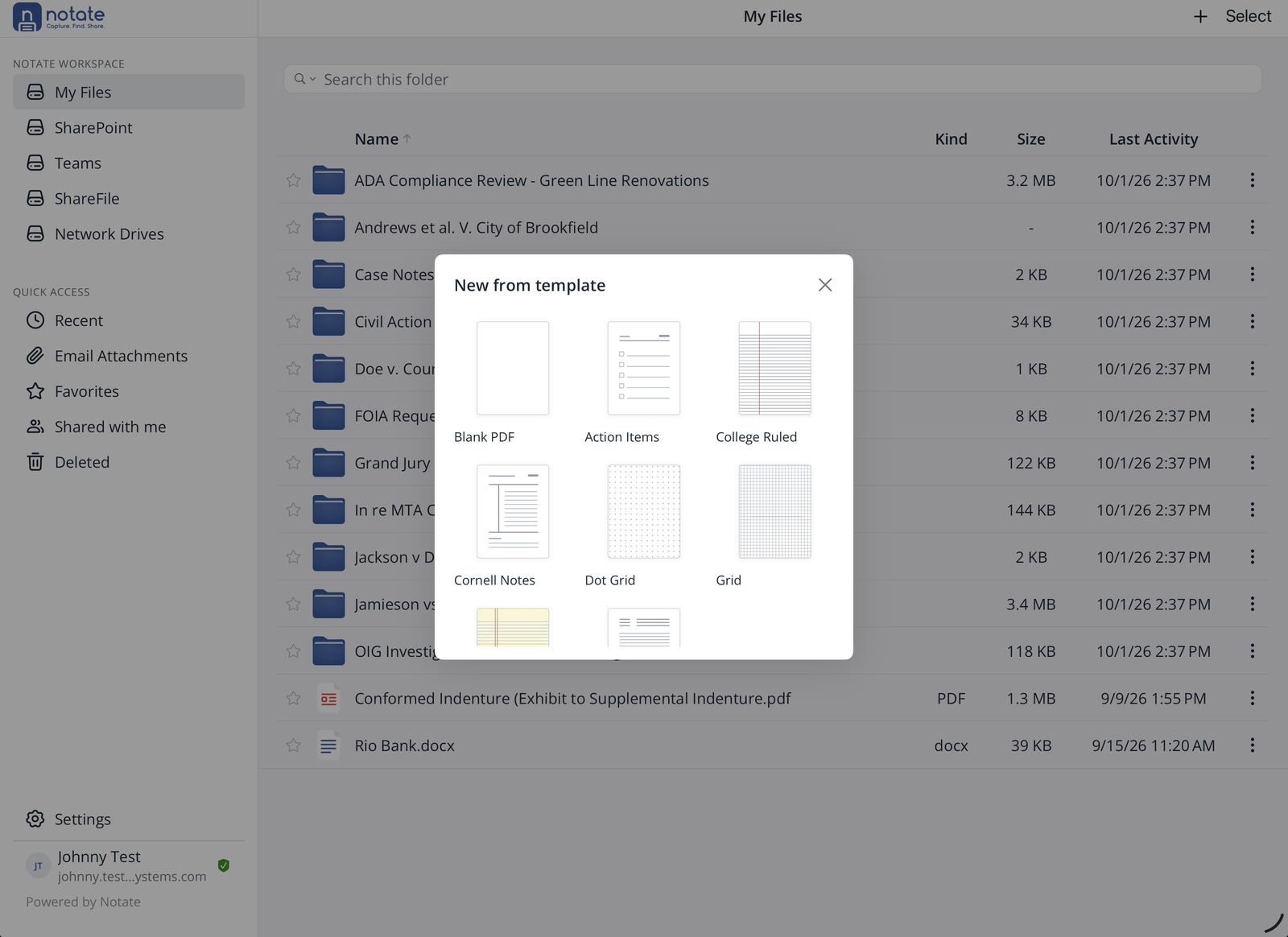
Notate comes with templates such as Blank PDF, Action Items, College Ruled, Cornell Notes, Dot Grid and Grid. To add your own, choose Save as Template from any document's file menu. Templates are kept in your Notate Drive, so they are available on all your devices.
Favorites
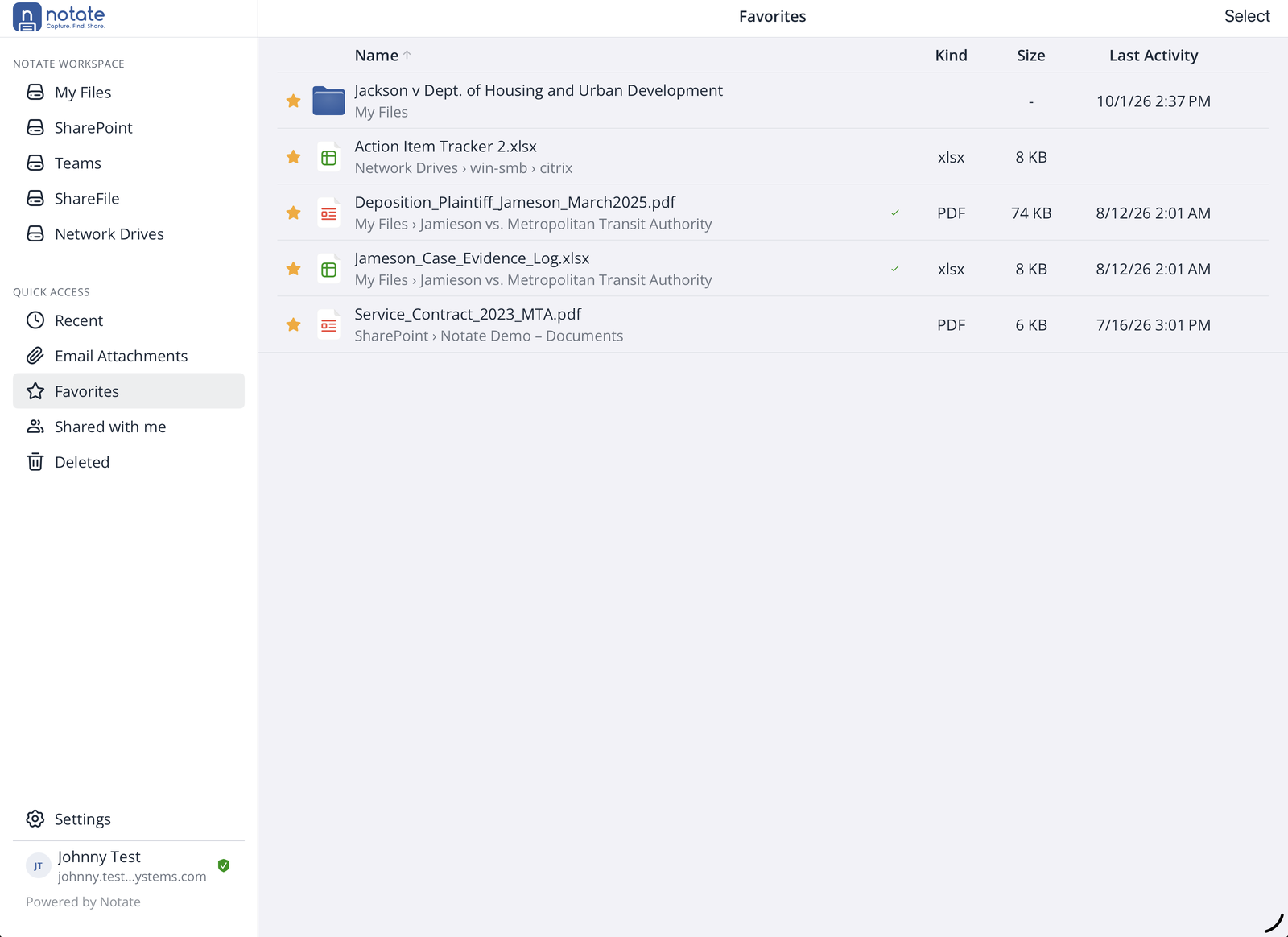
Tap the star beside any file or folder, then find it under Quick Access → Favorites. Each favorite shows where it is stored, so one list can hold items from My Files, SharePoint and your network drives. Favorites are kept on each device.
Recent files
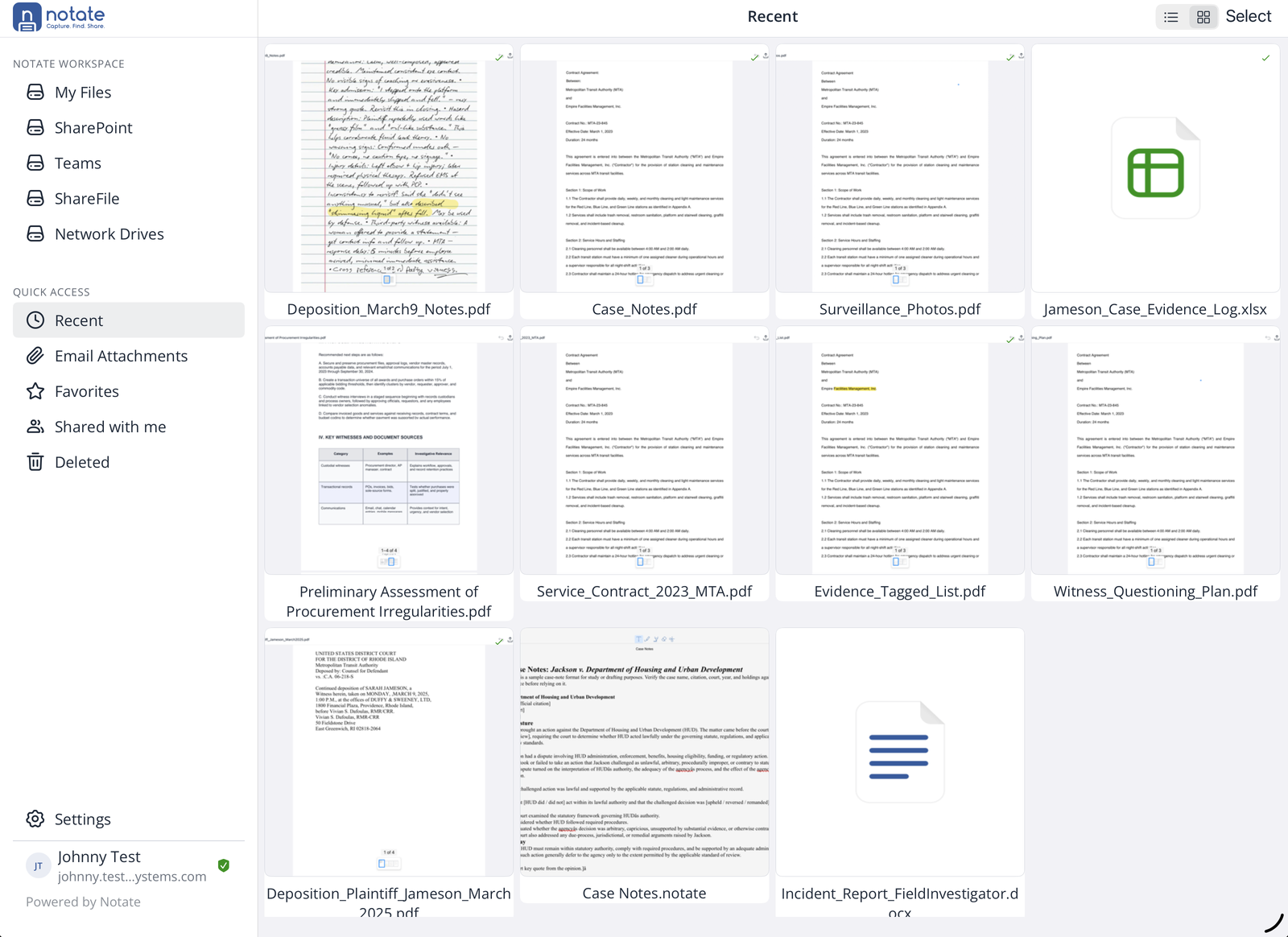
Quick Access → Recent shows the files you've opened, newest first, from every location. Switch between a list and page previews with the buttons at the top right. Recent is kept on each device.
Working offline
Choose Make Available Offline from a file or folder's menu. A folder includes everything in it, including files added later. Edits you make offline upload when you're connected again.
Offline access works for My Files, OneDrive, SharePoint and Teams. ShareFile and network drives need a connection.
Moving and copying files
Choose Move to… or Copy to…, go to the destination (use the back arrow to go up a level), and tap Move here. Tap New Folder to create one at the destination.
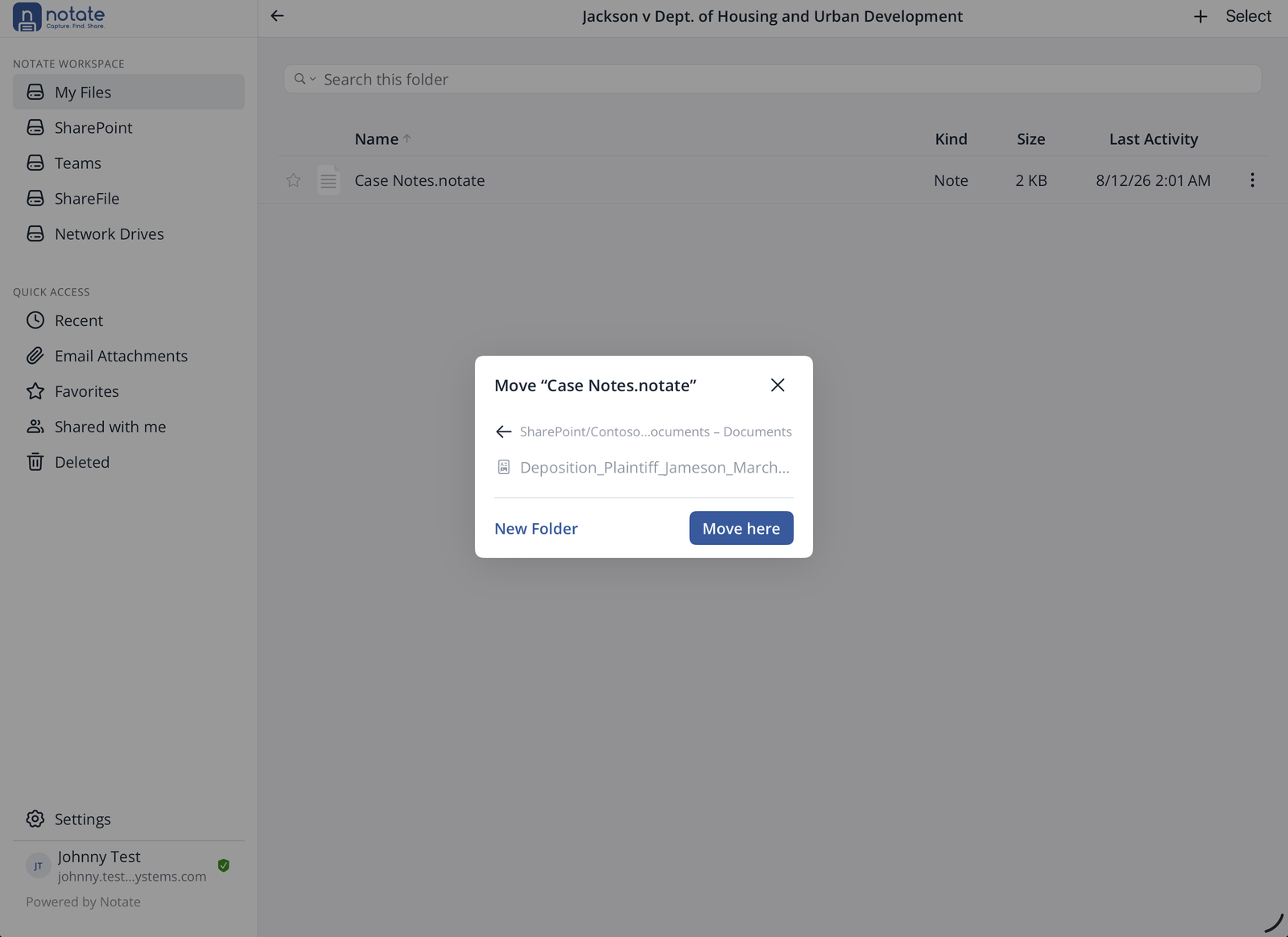
You can move files between locations, for example from My Files to SharePoint. Notate removes the original only after the copy has arrived safely.
Sharing with colleagues
Choose Share… from the file menu, enter a colleague's email address, and tap Invite. Files colleagues share with you appear under Quick Access → Shared with me. Sharing works within your organization.
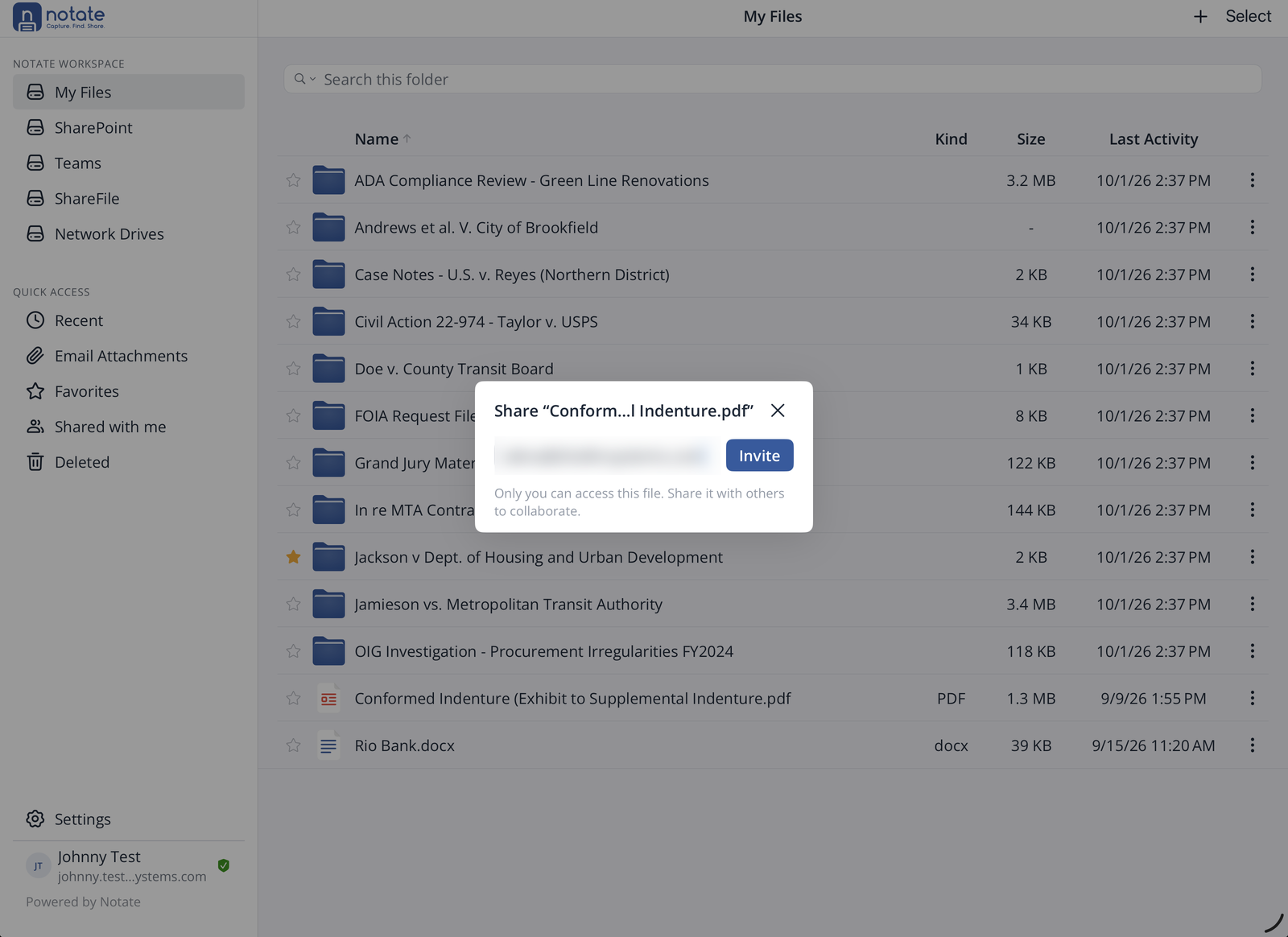
To send someone a copy instead, use Export. They get a snapshot of the file, not a shared document.
When two people change the same file
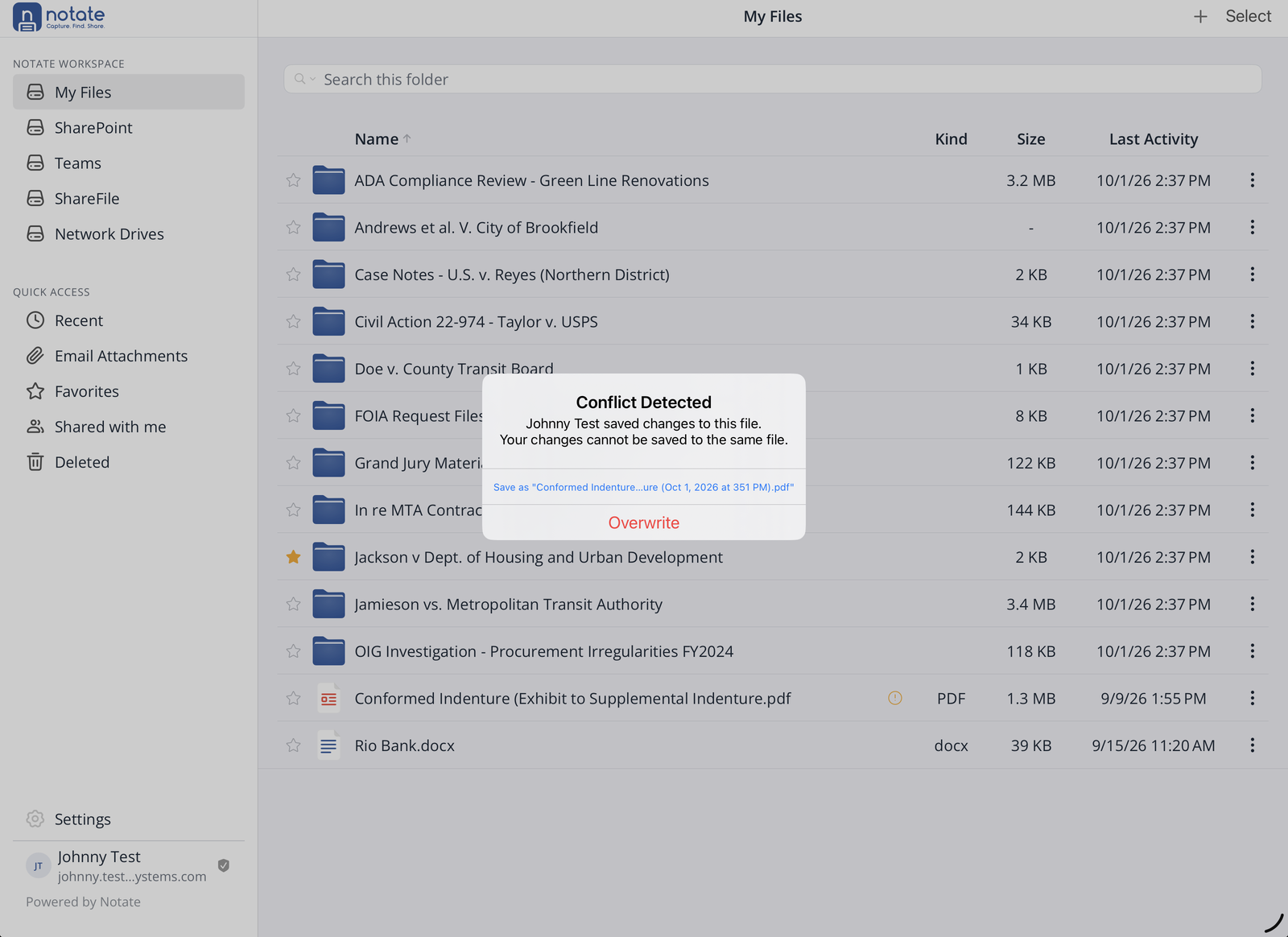
Notate never silently overwrites someone else's work. If a file changed since you opened it, you'll see Conflict Detected, with who saved it.
-
Save as "… (date and time)" keeps both: your changes are saved as a new copy. This is the safe choice.
-
Overwrite replaces the other person's version with yours.
Network drives
Network Drives lists the file shares your organization has set up for you. A drive marked Tap to sign in needs your network credentials the first time.