Open documents straight from your email, edit them in Notate or Microsoft Office, and send them back on the same email thread.
Email attachments
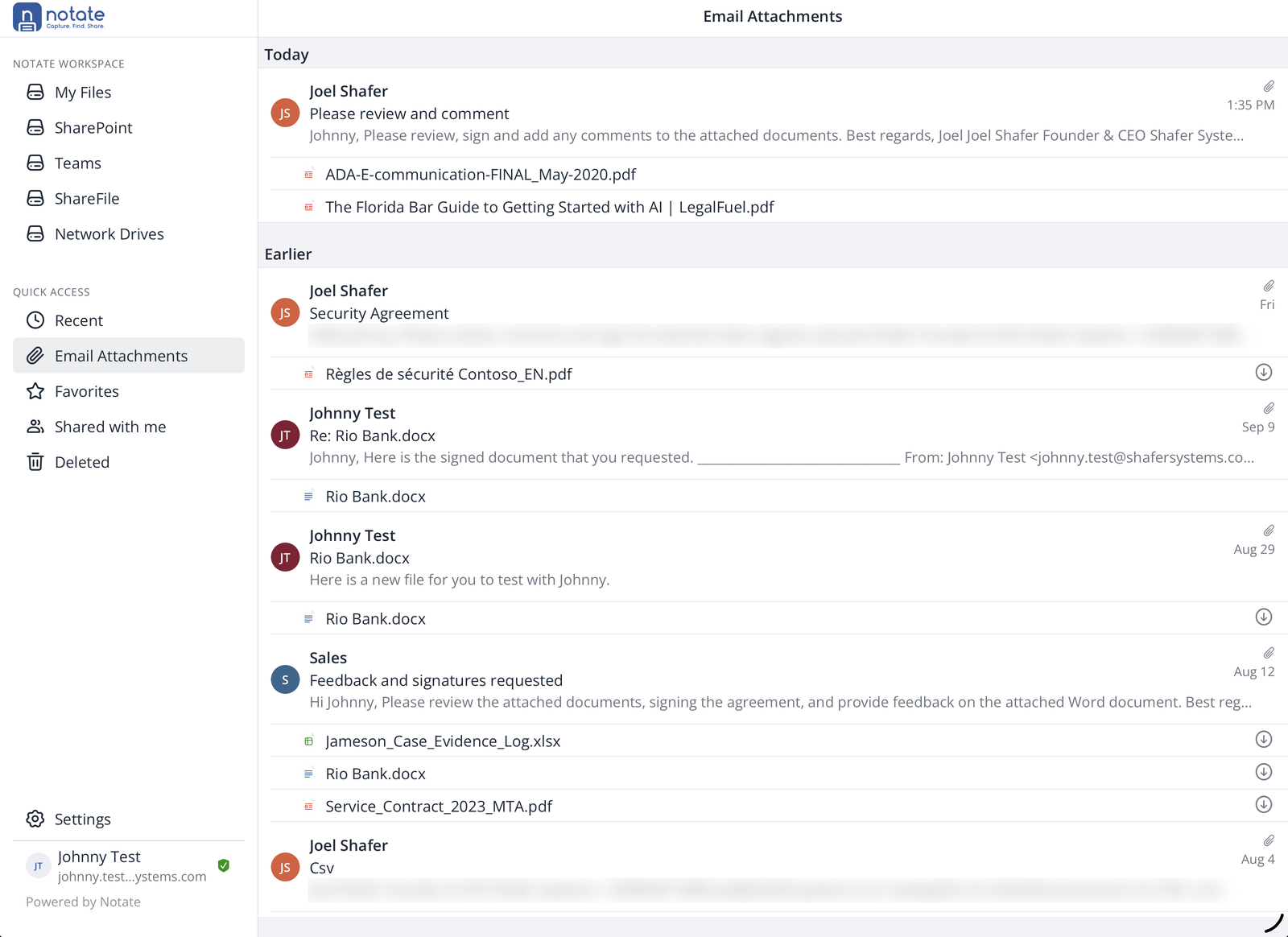
Quick Access → Email Attachments lists the attachments in your inbox, grouped by message, newest first. Tap an attachment to open it. Attachments you haven't opened yet show a download button.
How far back the list goes, and how long opened attachments stay on your device, are set in Settings → Files.
Replying with your changes
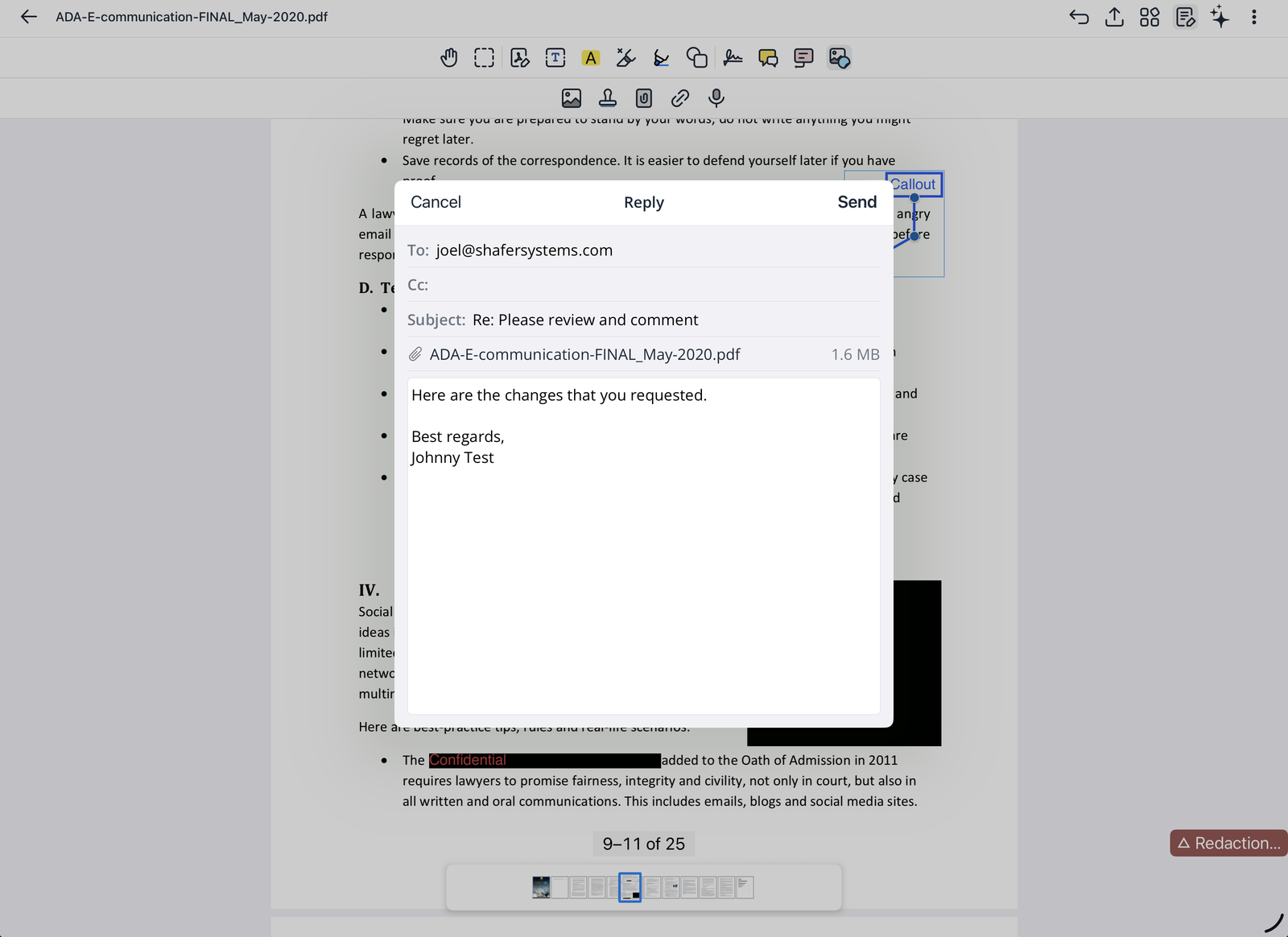
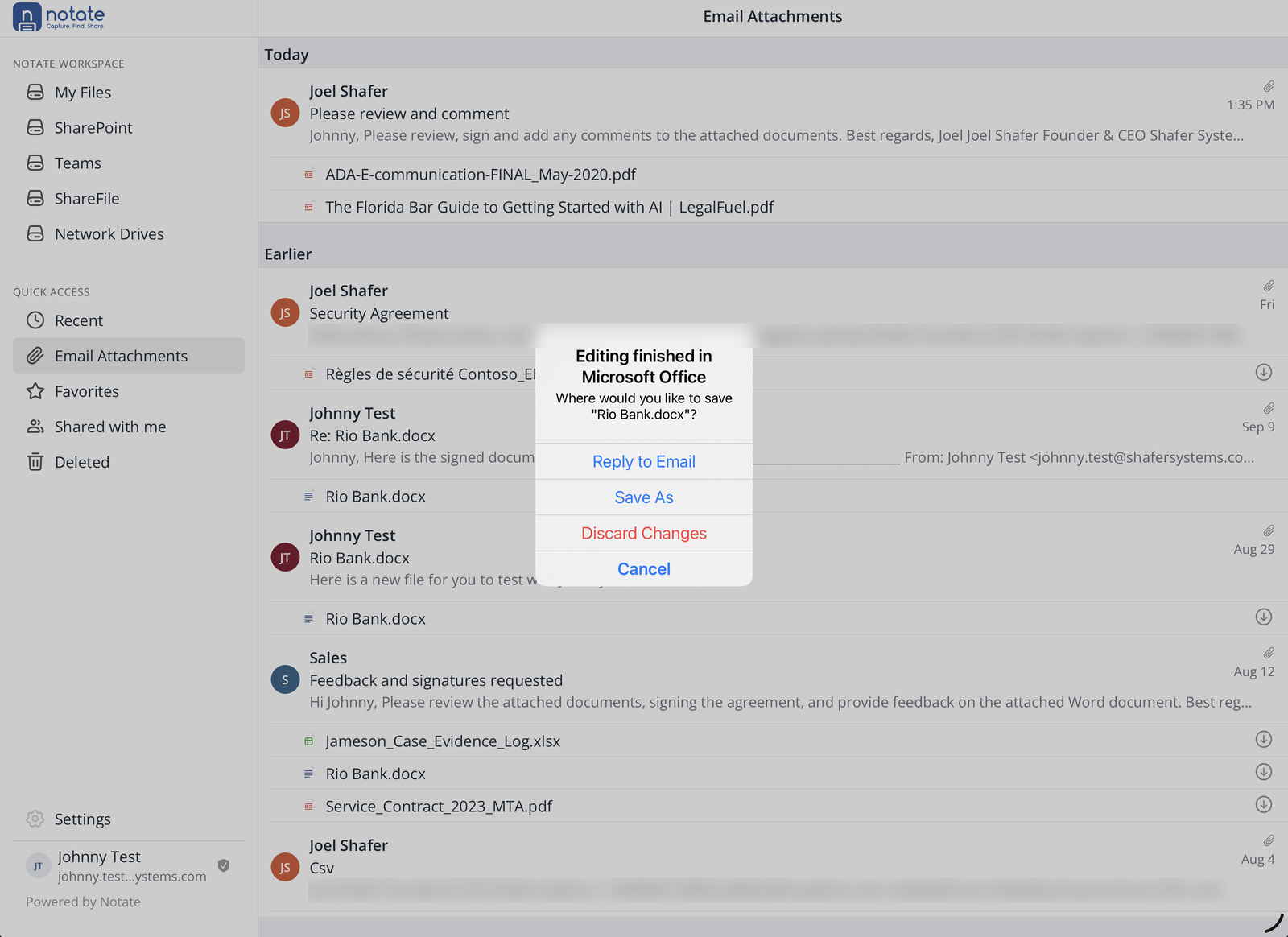
When you close an attachment you changed, choose Reply to email. Notate opens a reply on the same thread with your edited document attached. Add a message and tap Send.
To send only the pages you marked up, use Share → Share annotated pages in the PDF editor instead.
Word, Excel and PowerPoint files
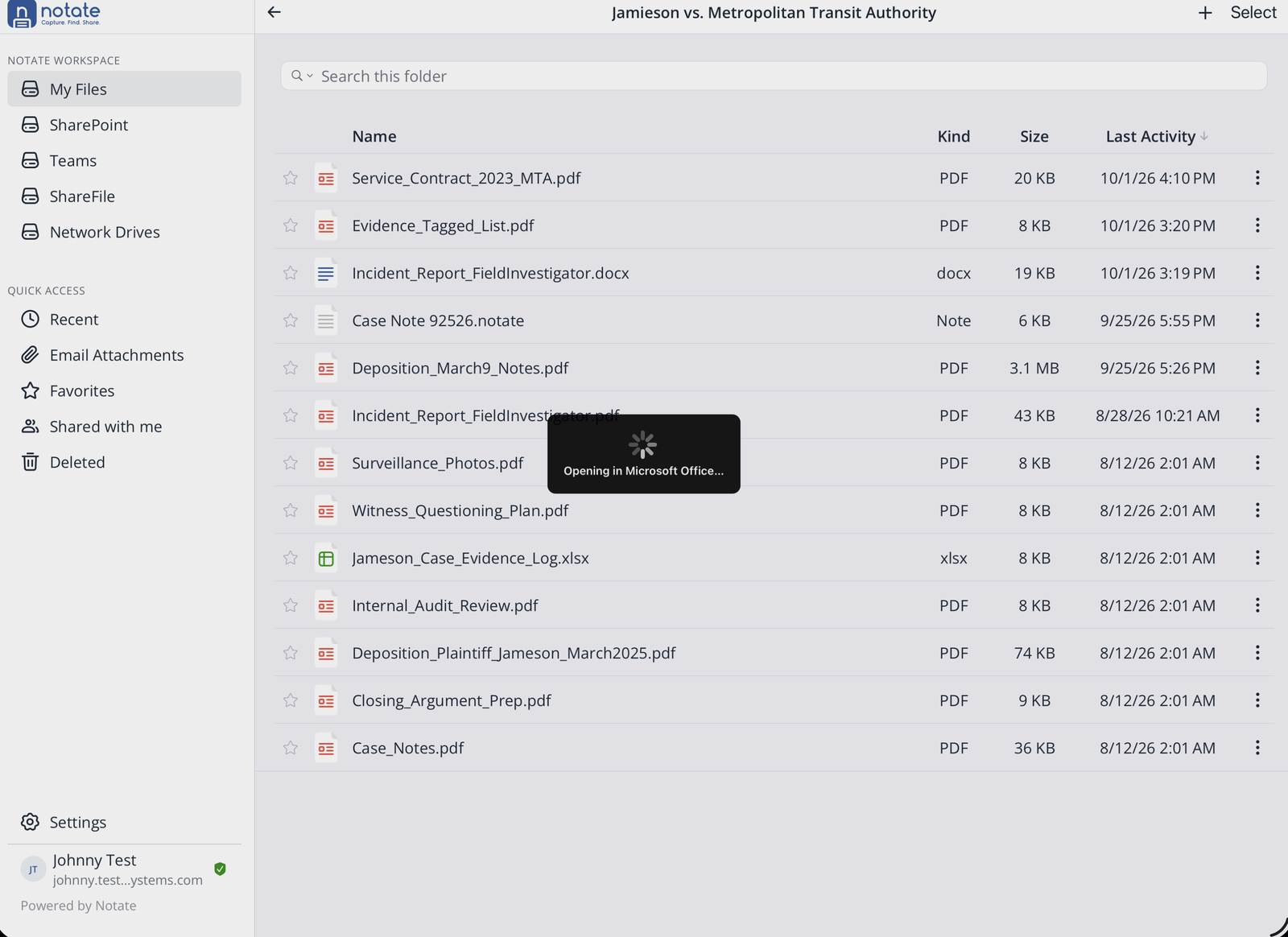
If your organization allows it and the Word, Excel or PowerPoint app is installed, Office files open in that app. You'll see Opening in Microsoft Office…. Return to Notate with the back link at the top left of the Office app.
-
Files in your Microsoft 365 storage (My Files, OneDrive, SharePoint, Teams): Office saves straight back to the file.
-
Email attachments and files from other places: when you come back, Notate asks where to save your changes: Reply to Email, Save As, or Discard Changes.
Without the Office apps, or without a connection, Office files open in Notate's own editor instead, which works offline.