

If your organization has turned it on, the AI assistant can summarize documents, answer questions about them, mark them up, help fill and sign forms, and turn handwriting into text. Tap ✦ in the PDF editor or the note editor.
The assistant runs on your organization's own Microsoft Azure AI service, under your work sign-in. Conversations are not stored; each session starts fresh. If you see Not configured, your organization hasn't turned it on.
In the PDF editor
On iPad the assistant opens below your document, so you can see both. Type a request in Ask the AI to build or modify the document…, or use the quick actions in its toolbar.
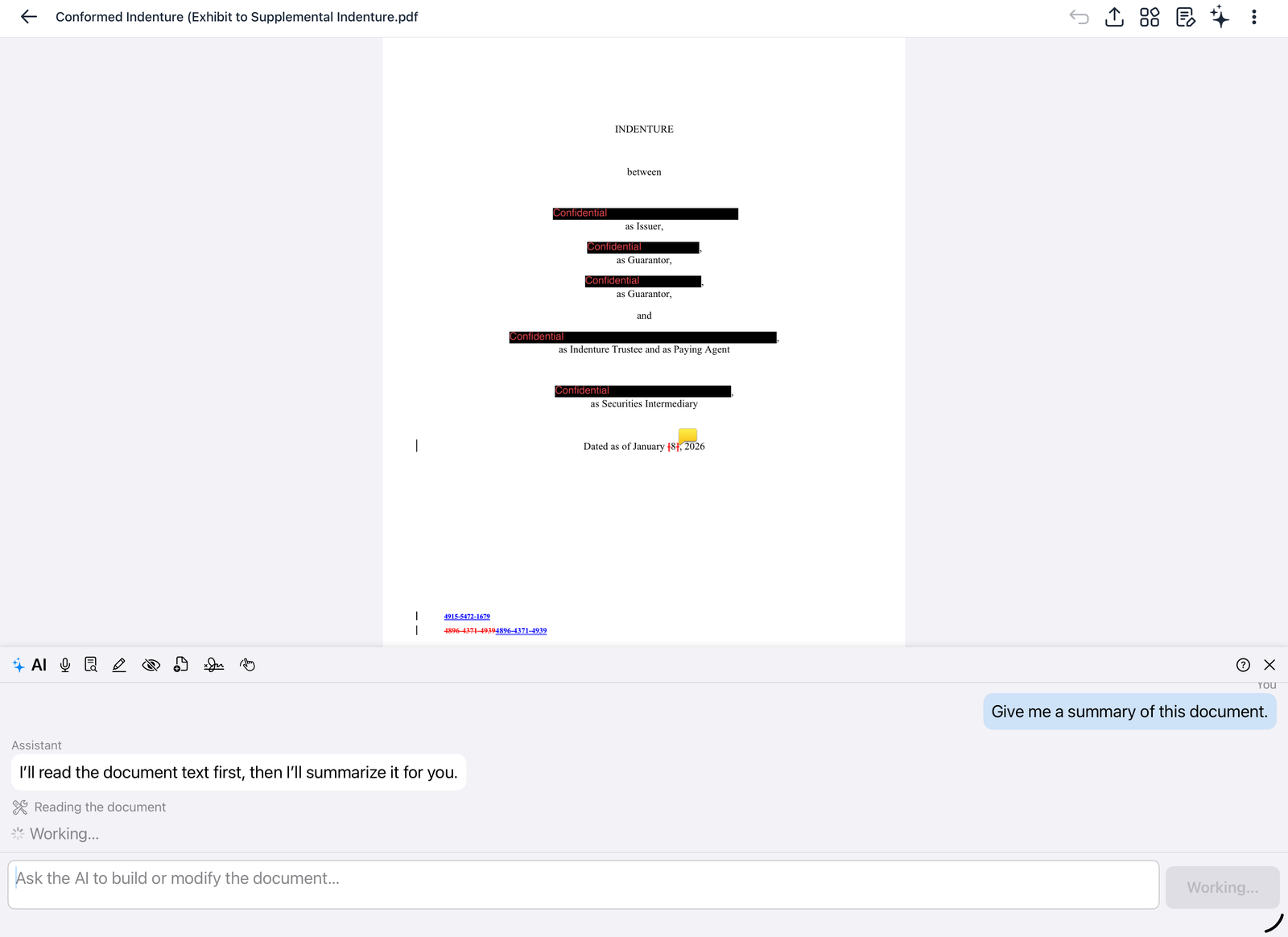
-
Ask about the document. It reads and searches the document and takes you to the passages it refers to, even in long documents.
-
Mark up. It highlights passages and adds comments, text boxes and shapes for you.
-
Redact. It marks proposed redactions for you to review. Applying them is always your step.
-
Fill and sign. It fills form fields, and always asks you to confirm before placing your signature.
-
Handwriting to text. It types up handwritten pages.
-
Meeting notes. With your consent, it records a meeting, shows a live transcript, and turns it into notes.
-
Create. It adds pages and builds documents from your instructions.
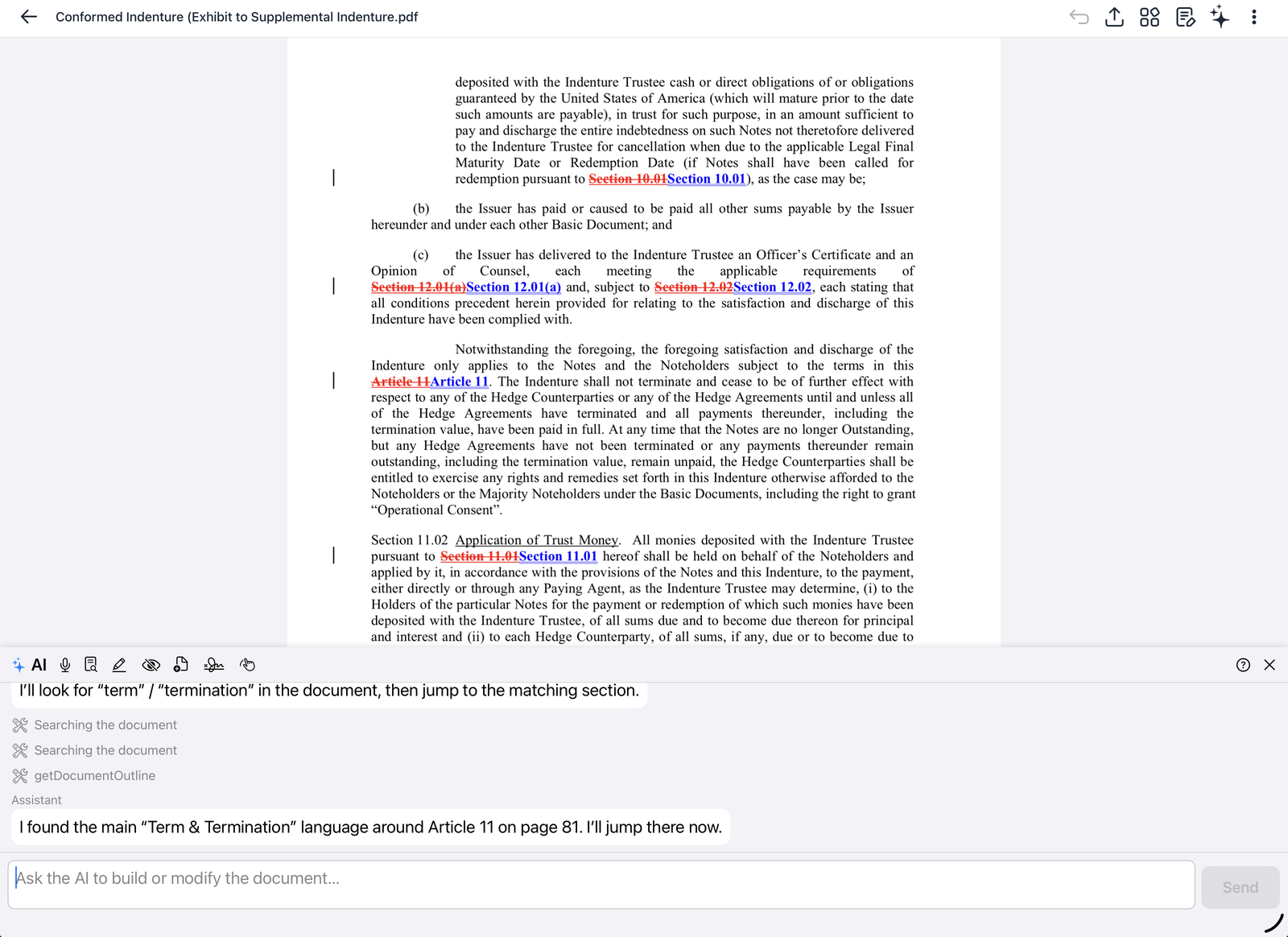
Undo any AI change: each change adds a Revert to here button in the conversation.
In the note editor
The assistant can draft, rewrite and summarize, record meeting notes (added to the end of your note), and turn your handwriting into text. A single Undo reverses an AI change.
AI can make mistakes. Check its work before you rely on it.