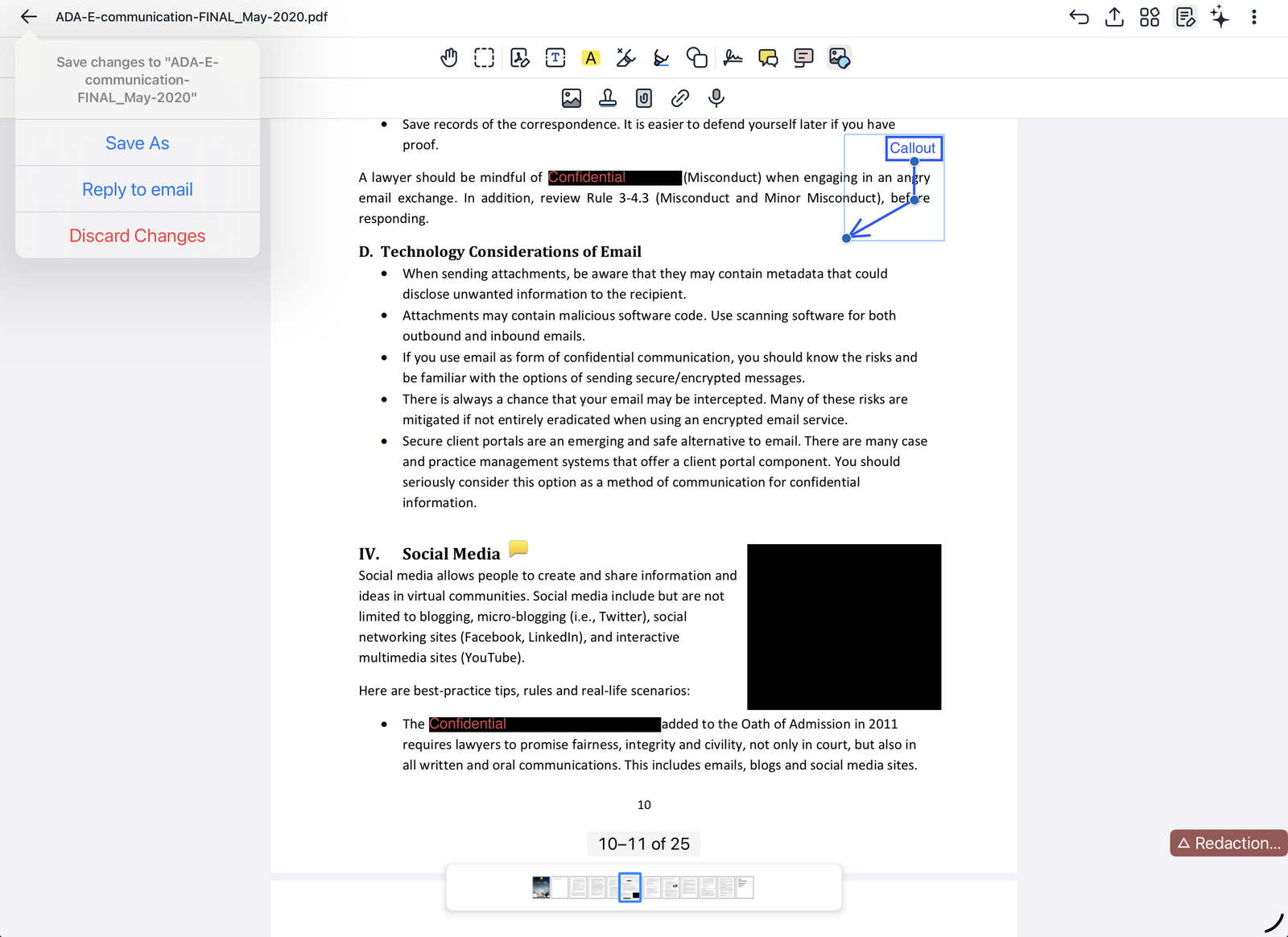

Notate's PDF editor lets you read, mark up, sign, redact, rearrange and compare PDFs, and edit the document's own text.
On this page
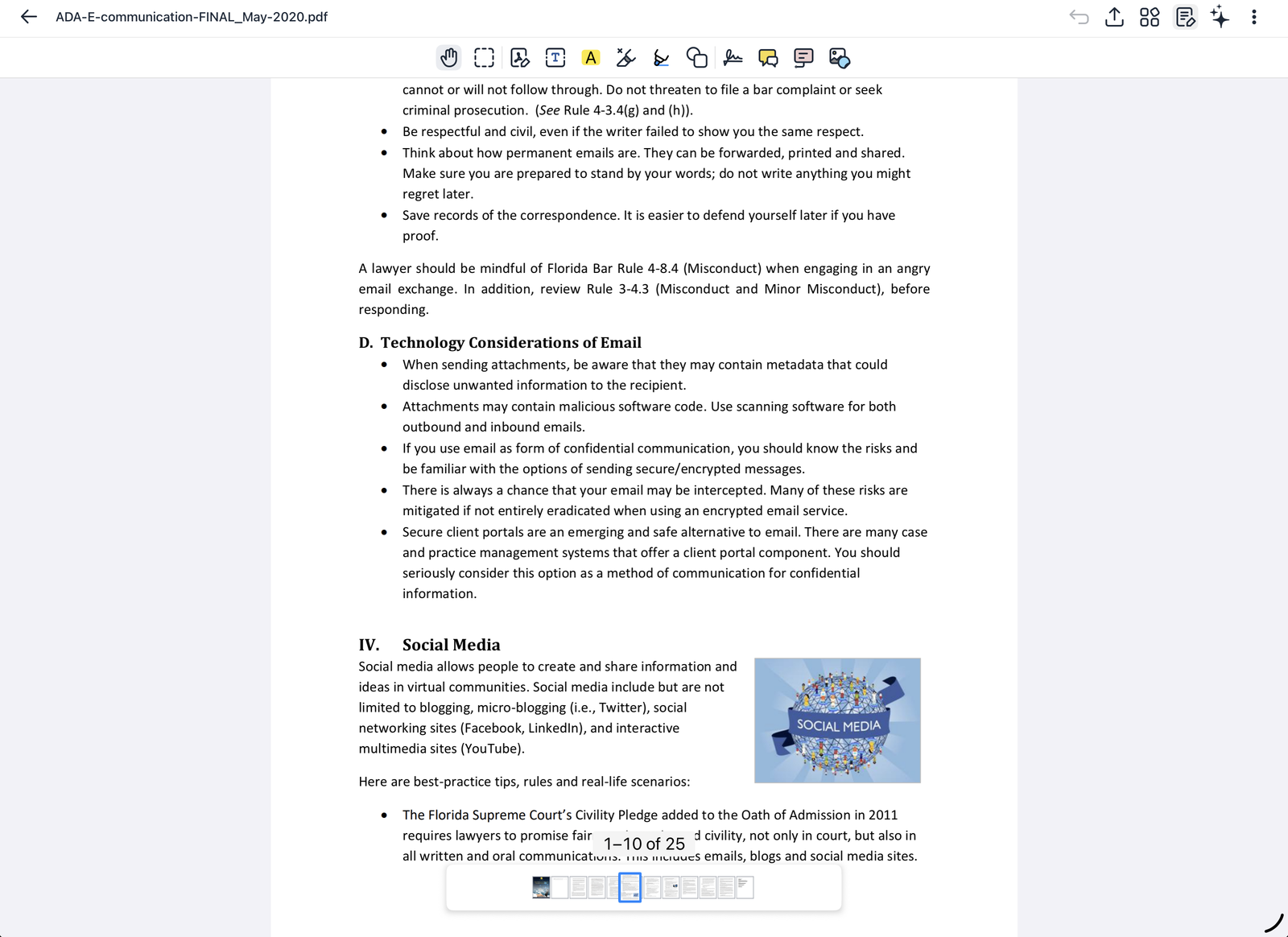
The top bar
|
Button |
What it does |
|---|---|
|
← |
Closes the document (see Closing and saving). |
|
Undo |
Undoes your last change. |
|
Share |
Sends the document, or only the pages you marked up. |
|
Pages |
Shows every page, to move around or rearrange them. |
|
Markup |
Shows or hides the markup toolbar. |
|
✦ AI |
Opens the AI assistant, if your organization has turned it on. |
|
⋯ |
More: search, bookmarks, the list of annotations, document details and more. |
The strip of page previews at the bottom shows where you are; tap a page to go to it.
The markup toolbar
From left to right. Tap a tool to choose it; its options appear in a second row.
|
Tool |
Use it to |
|---|---|
|
Hand |
Scroll and zoom without marking the page. |
|
Select |
Select markup to move, resize, restyle or delete it. |
|
Edit content |
Change the PDF's own text. |
|
Text box |
Type on the page. |
|
Text markup |
Highlight, underline or strike out text. |
|
Redaction |
Remove content permanently. |
|
Pen |
Write and draw. |
|
Shapes |
Draw lines, arrows, rectangles, circles and polygons. |
|
Signature |
Sign the document. |
|
Comments |
Add comments that others can reply to. |
|
Callout |
Add a text box with an arrow pointing at something. |
|
Insert |
Add an image, stamp, saved markup, link or audio recording. |
Editing the document's text
Choose Edit content and tap the text you want to change. The text becomes editable in place; set the font, size and color in the bar at the bottom, then tap Done. Your organization decides whether this tool is available.

Highlighting and marking text
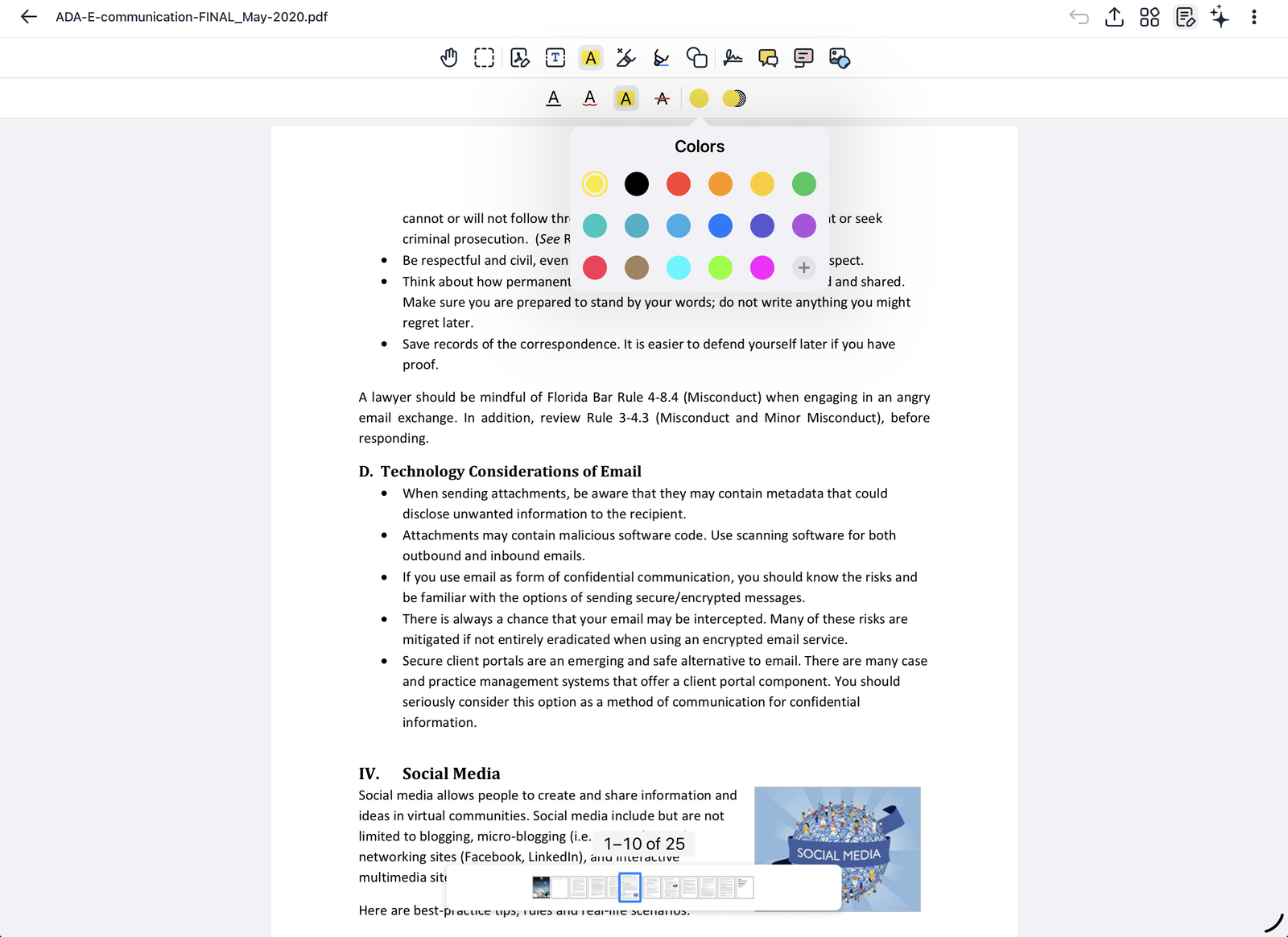
Choose Text markup, pick underline, squiggly underline, highlight or strikeout, and drag across the text. Tap the color button to change color.
Writing and drawing
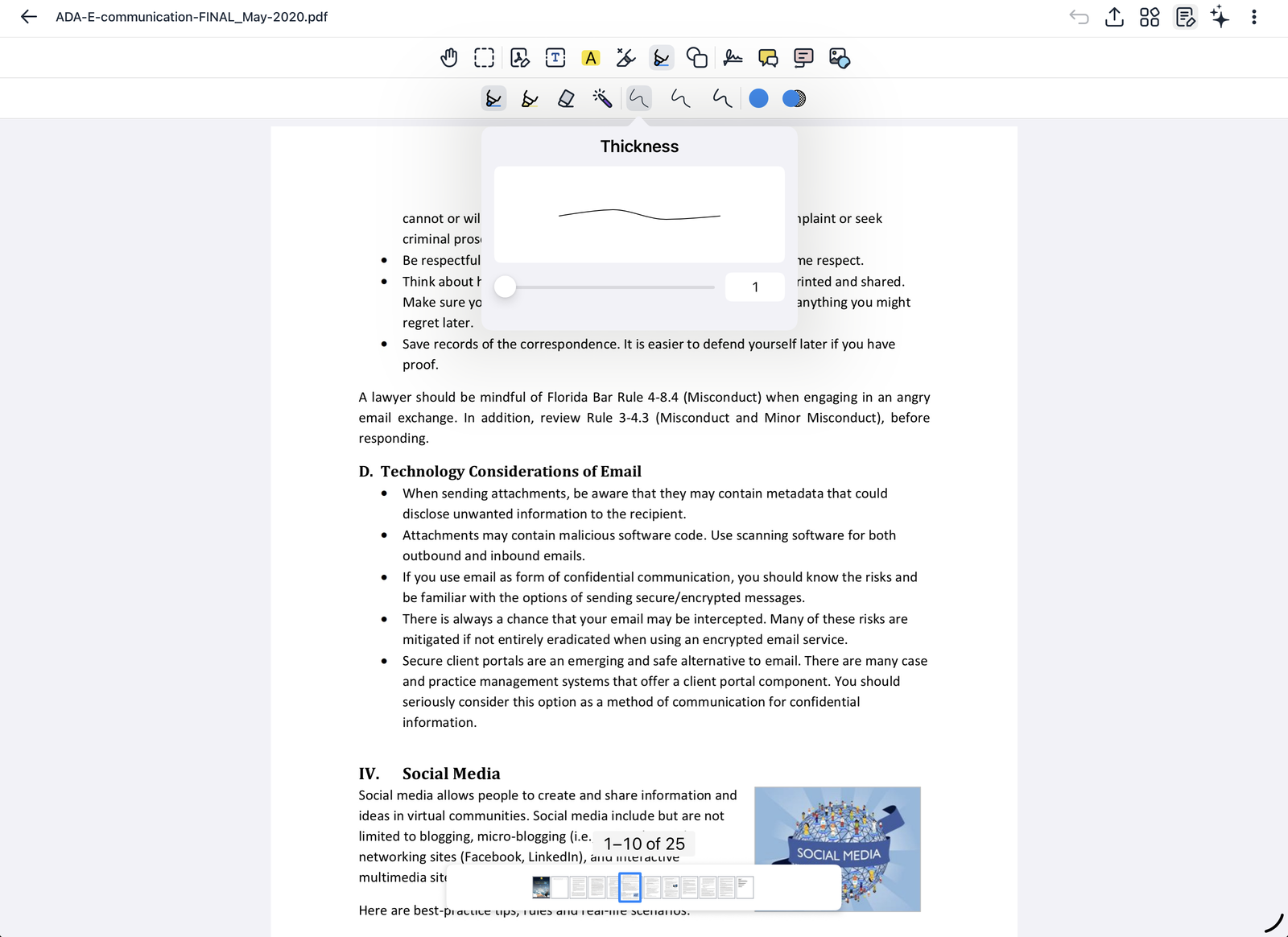
Choose Pen for a pen, highlighter or eraser. Set the thickness, color and opacity in the second row. Apple Pencil works with pressure.
Drawing shapes
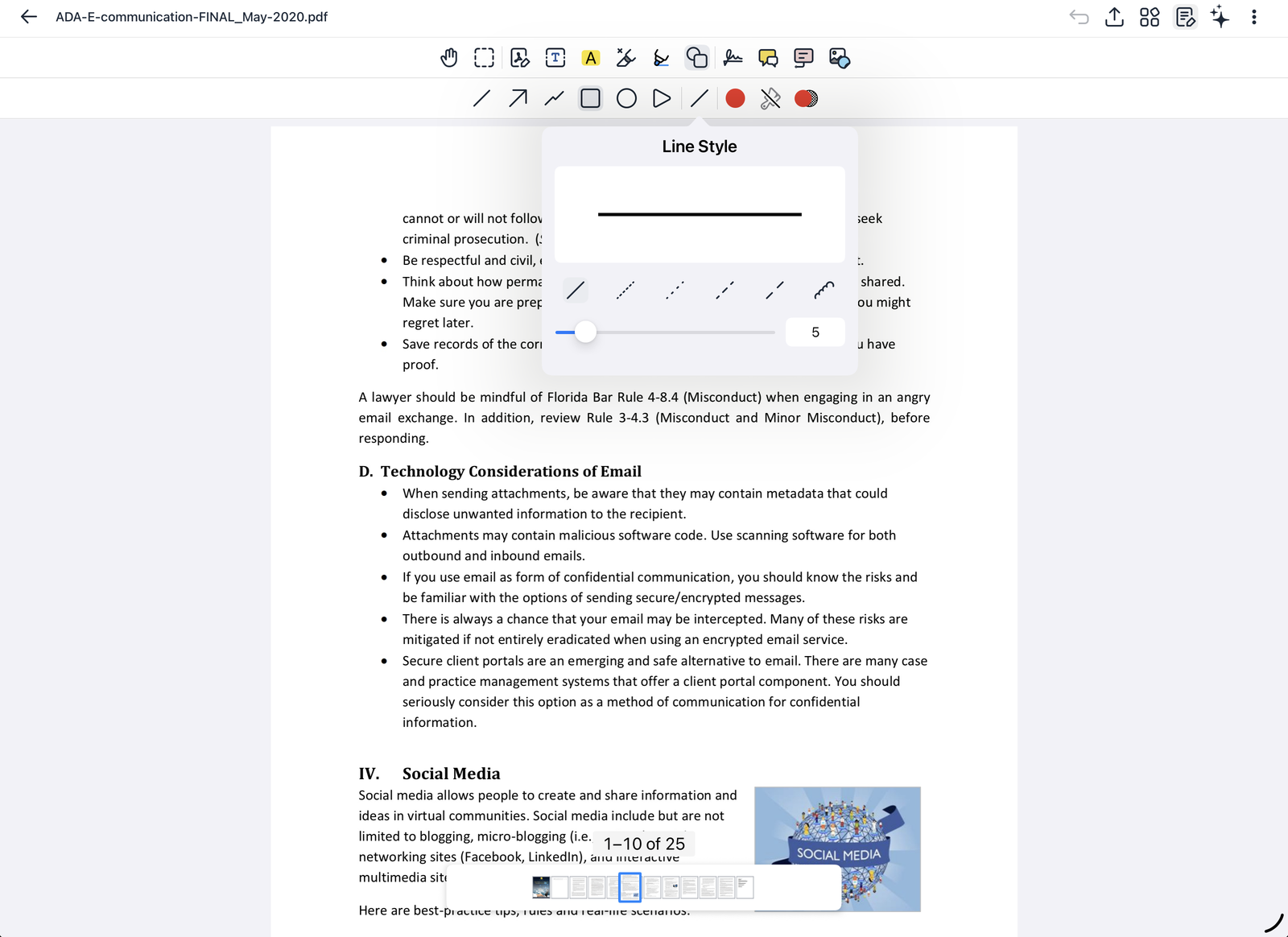
Choose Shapes for a line, arrow, connected lines, rectangle, ellipse or polygon. Set the line style (solid, dotted or dashed) and thickness, the color, and a fill.
Signing a document
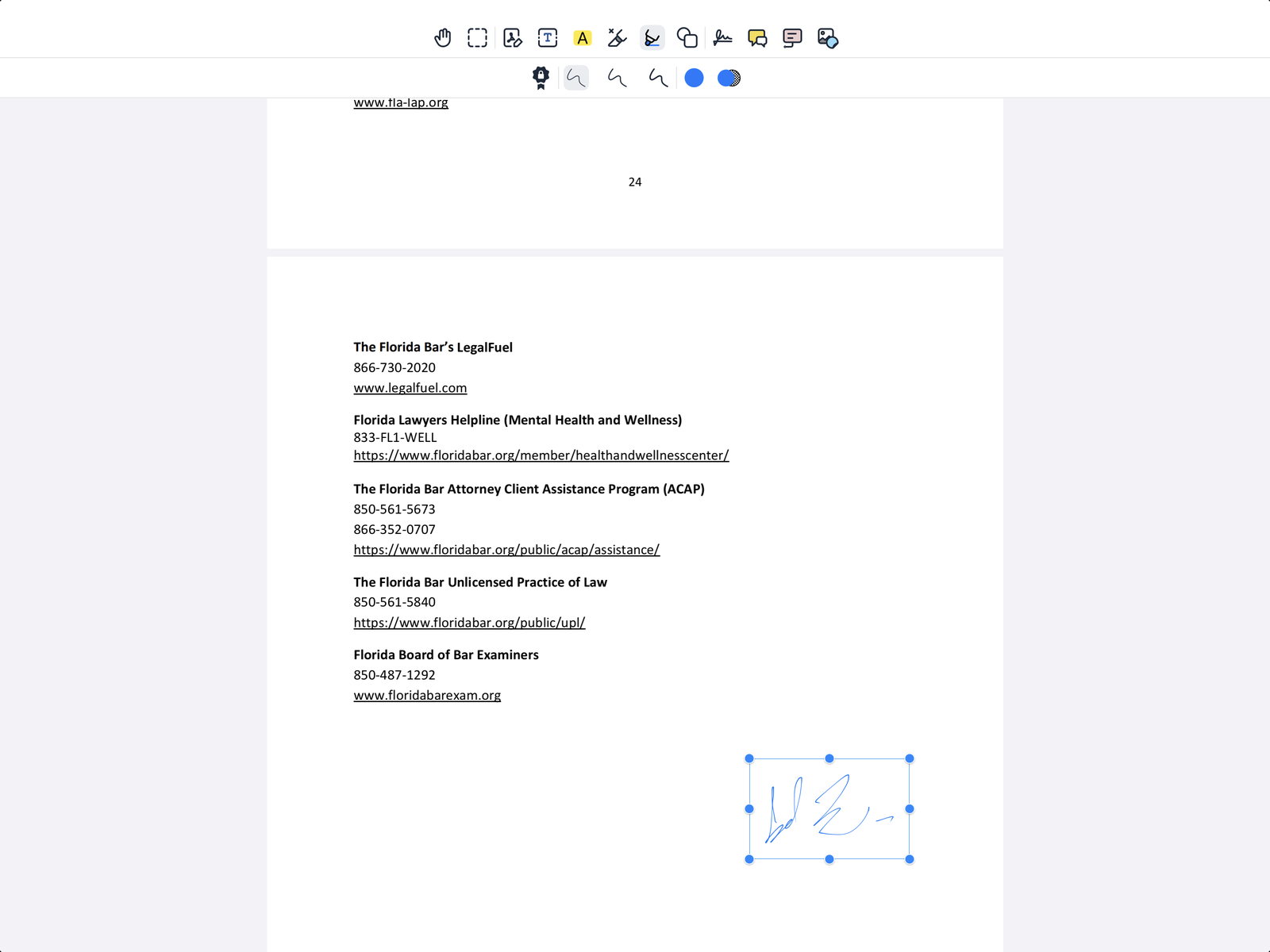
Choose Signature and sign with Apple Pencil or your finger, or place a signature you have saved. Move and resize it with the handles. To fill in a form, tap a field and type.
Adding comments
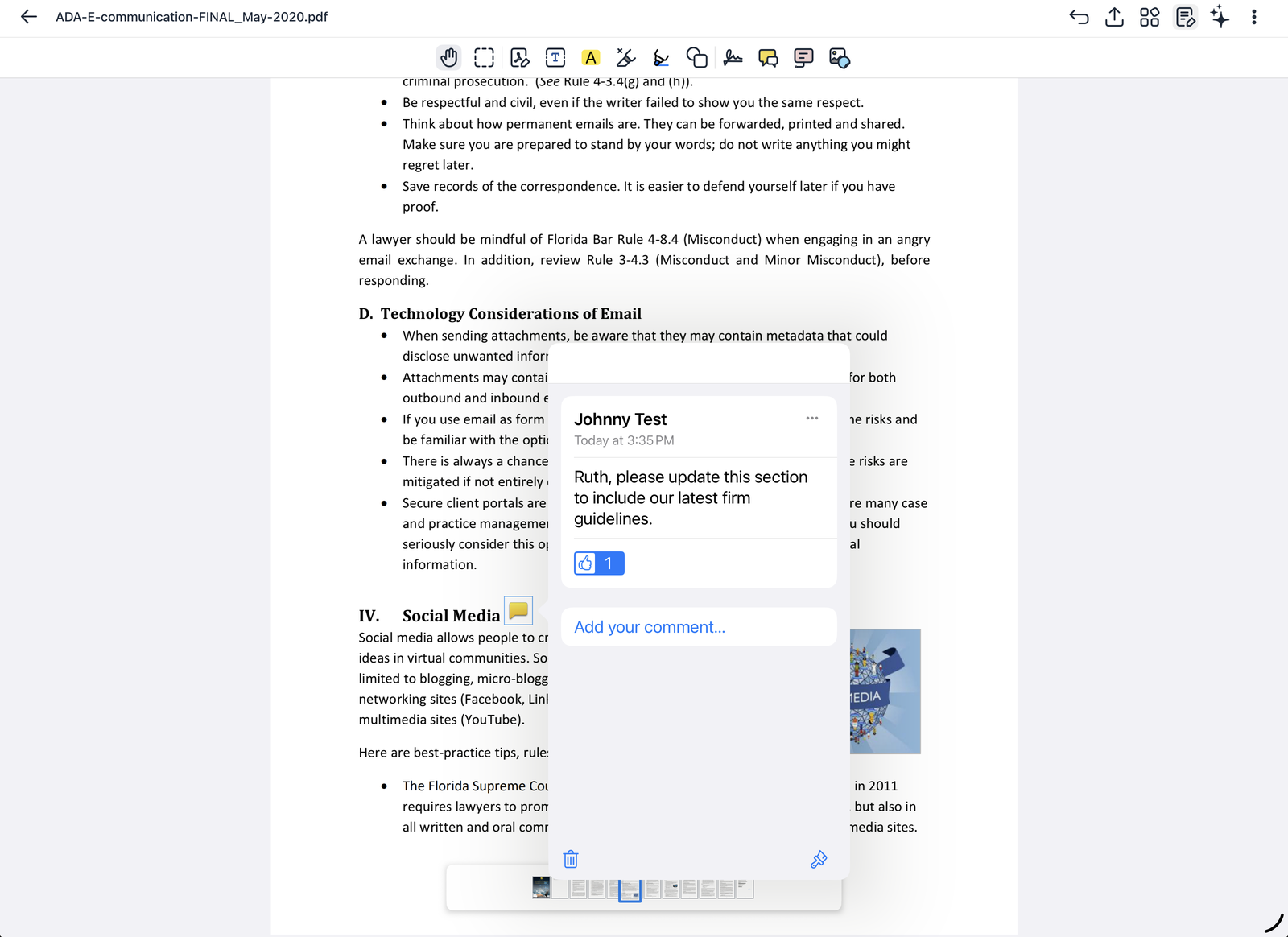
Choose Comments and tap where the comment belongs. Comments show who wrote them and when. Colleagues can reply in the same thread and react with a thumbs-up. Tap the trash can to delete a comment.
Adding callouts
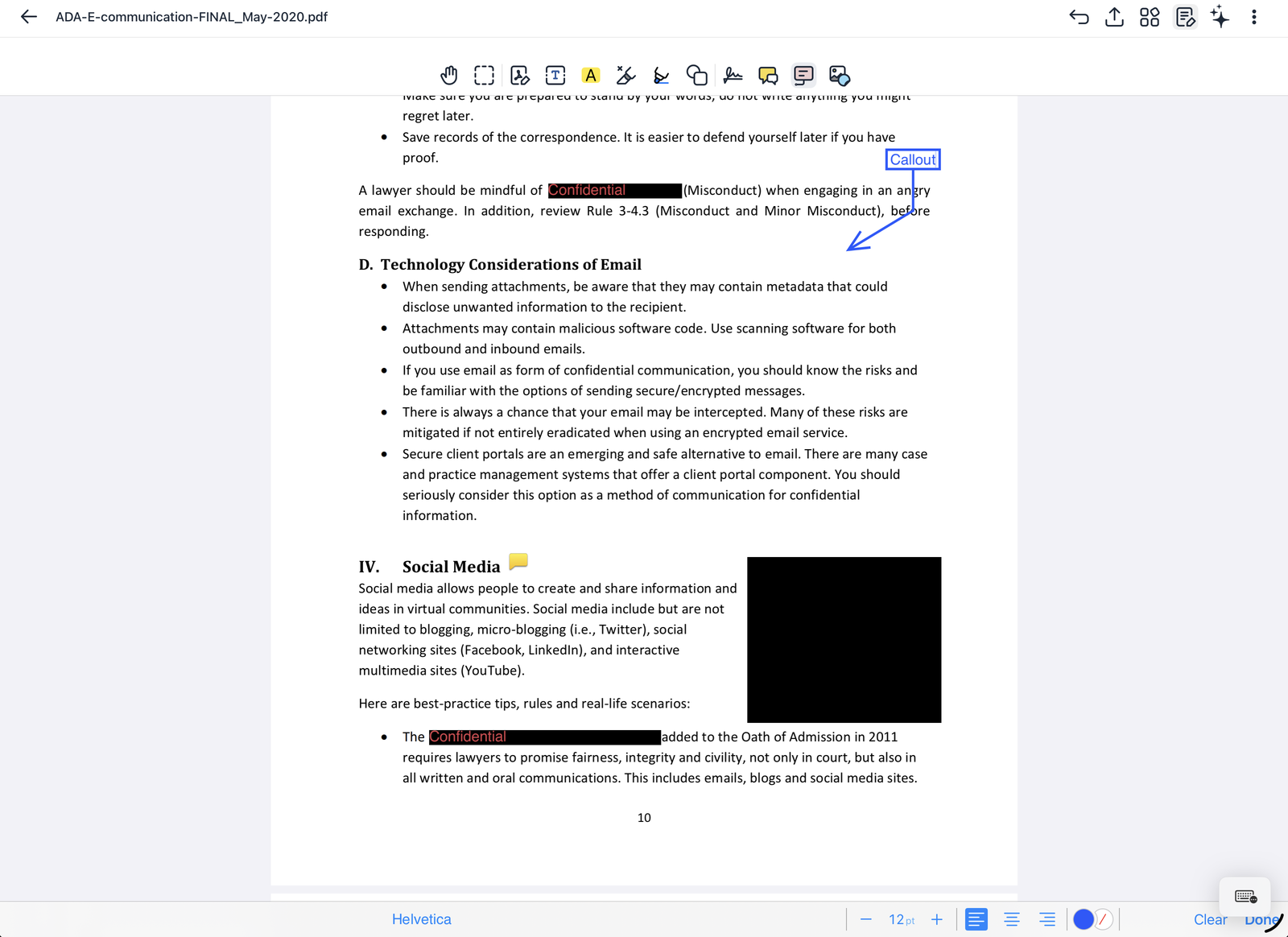
Choose Callout, tap where the arrow should point, and type. Drag the box and the arrow to place them.
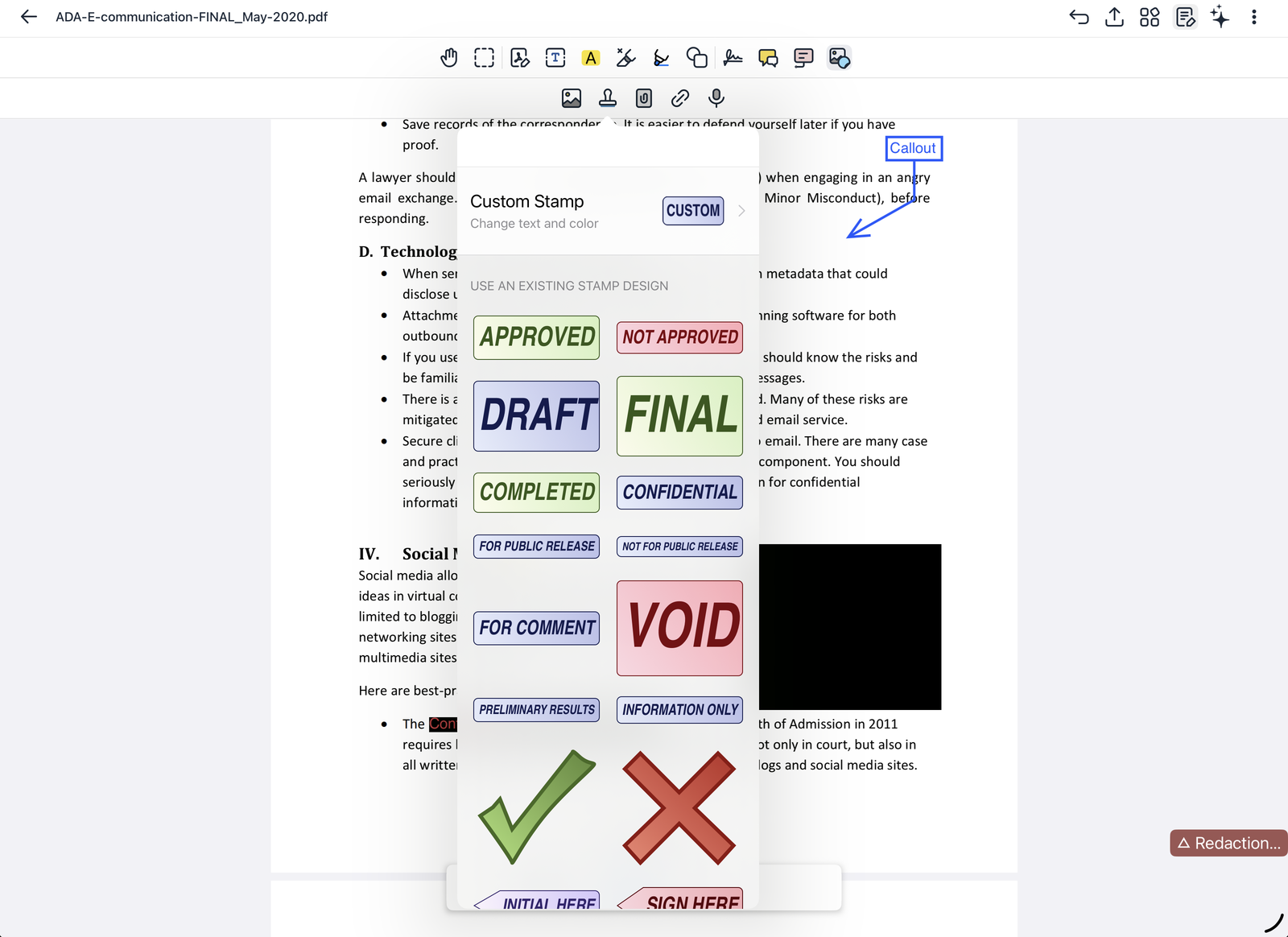
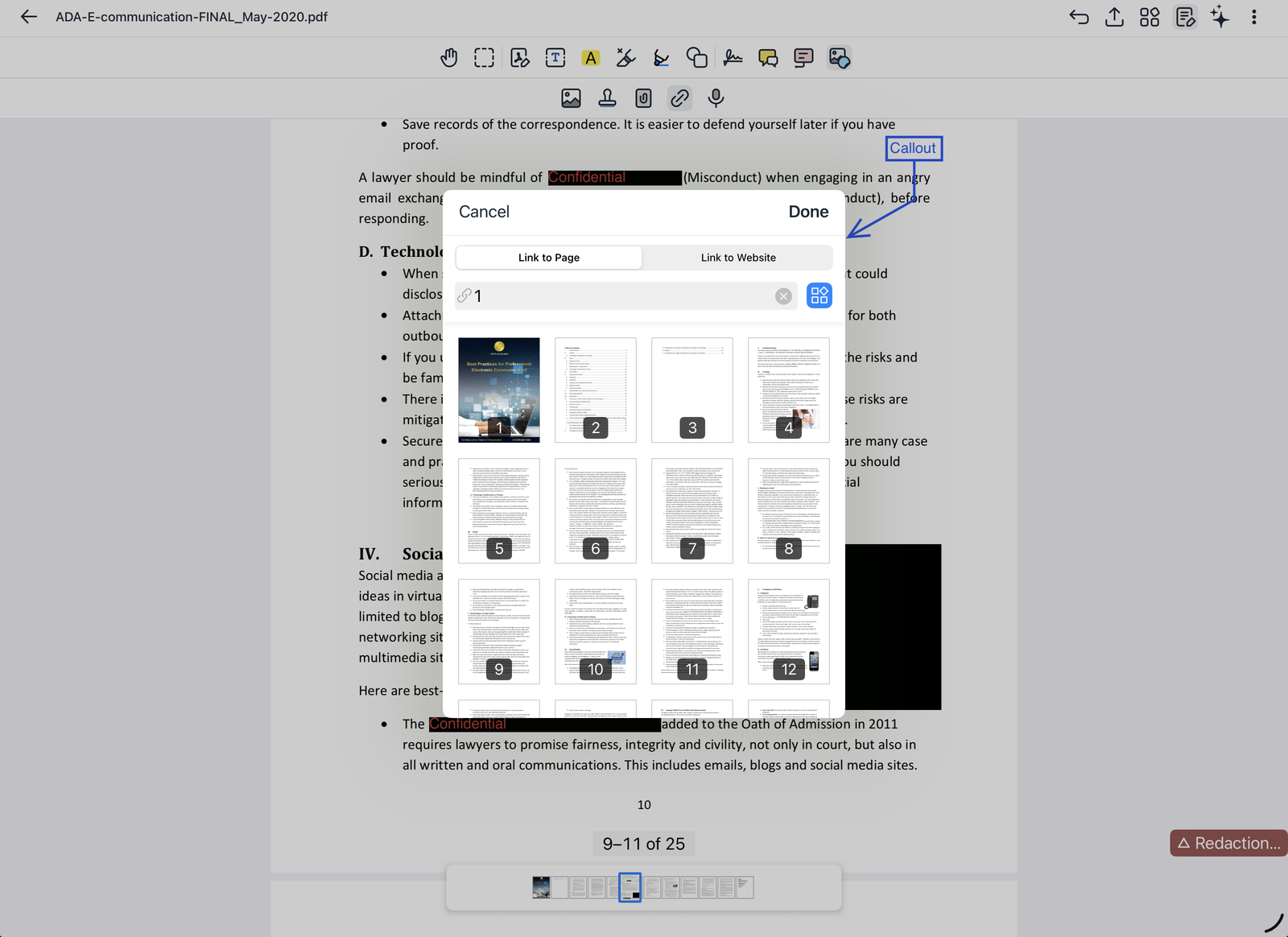
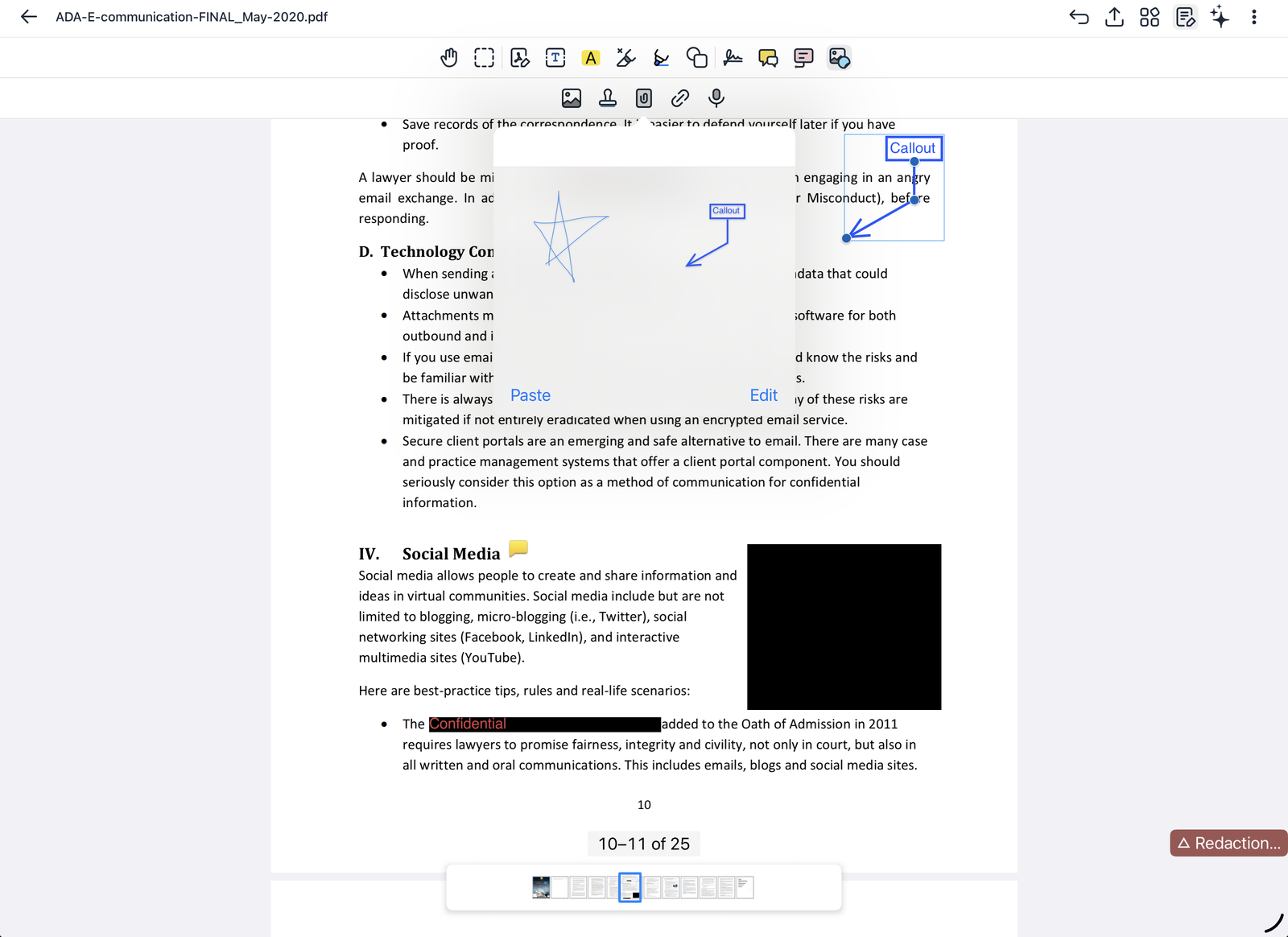
Adding images, stamps, links and audio
Choose Insert, then:
-
Image: take a photo or choose one from your library.
-
Stamp: choose a ready-made stamp, such as Approved, Draft, Final, Confidential, Void or Sign Here, or make a custom stamp with your own text and color.
-
Saved markup: paste markup you saved earlier, such as a drawing or callout you use often.
-
Link: link an area to another page in the document or to a website.
-
Audio: record a voice note on the page.
Redacting a document
Redaction removes content permanently, so it takes two steps. Your organization decides whether it is available.
-
Mark. Choose Redaction and mark the text or area to remove. Marks are only drafts; nothing is removed yet, and you can still change them.
-
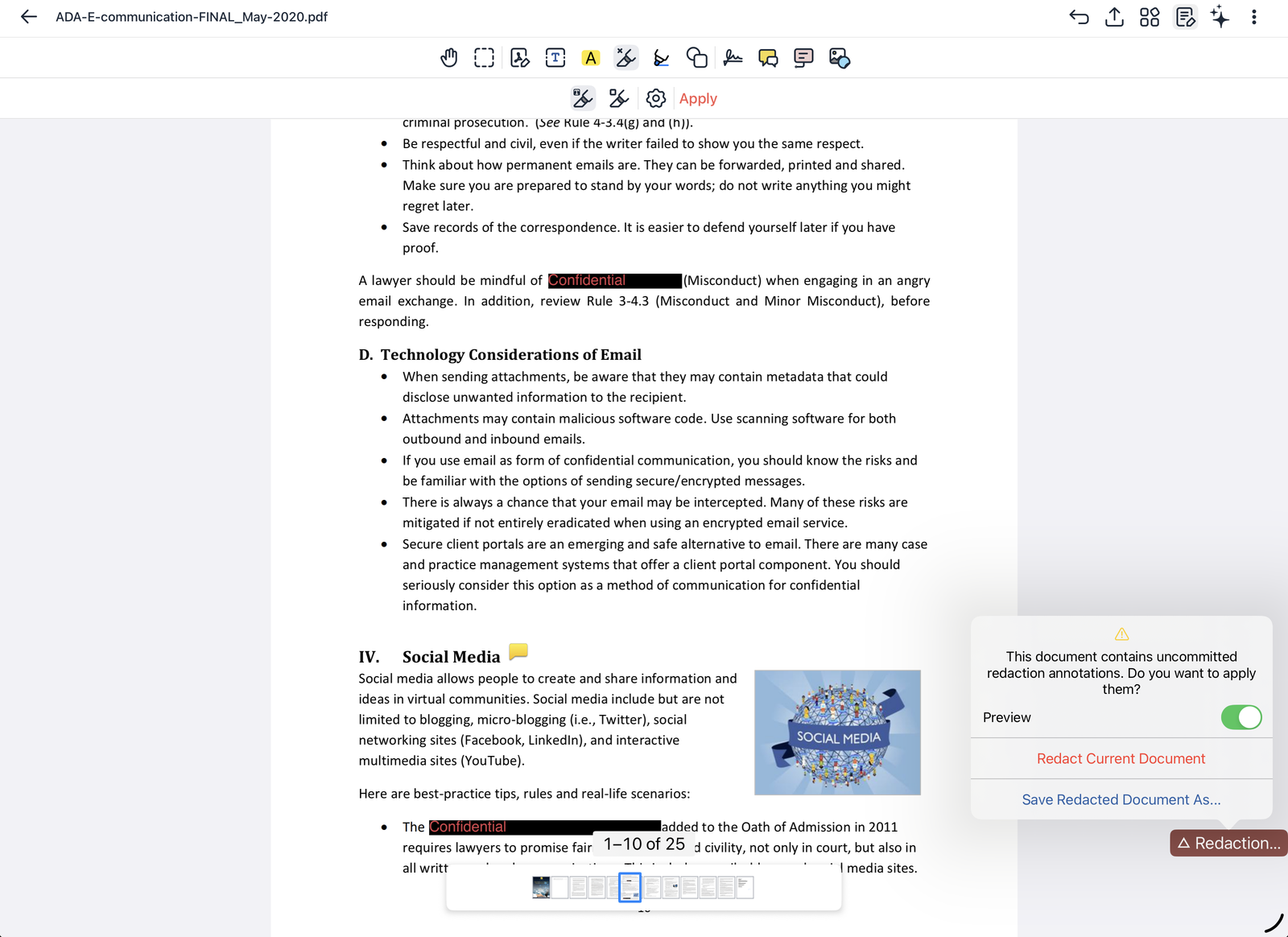
Apply. Tap Redaction… at the lower right (or Apply in the toolbar). Turn on Preview to check the result, then choose Redact Current Document, or Save Redacted Document As… to keep the original unchanged.
The gear button sets the color of the marks, and the fill color of applied redactions.
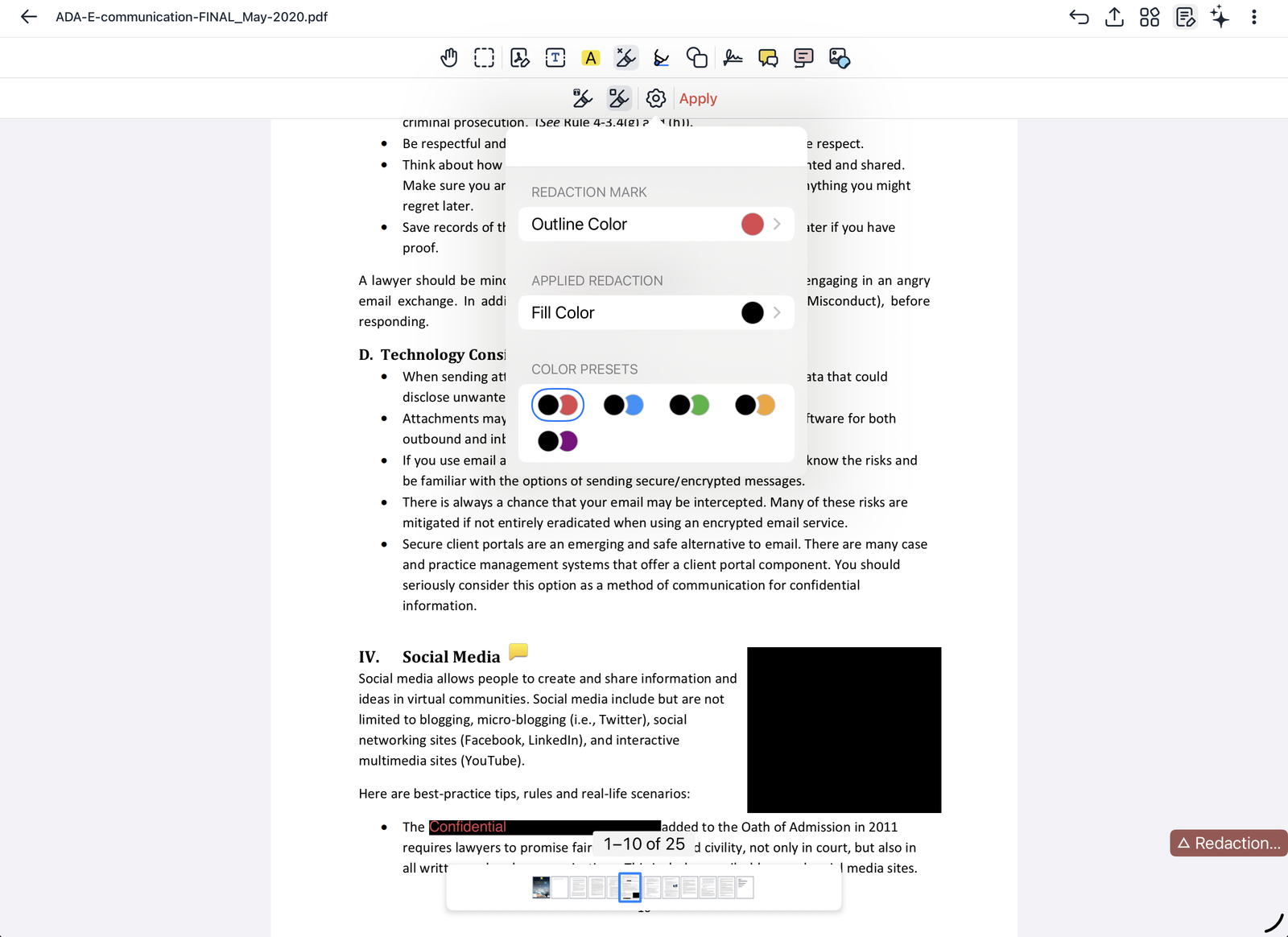
Applied redactions can't be undone. The content underneath is deleted from the file, not just covered.
Managing pages
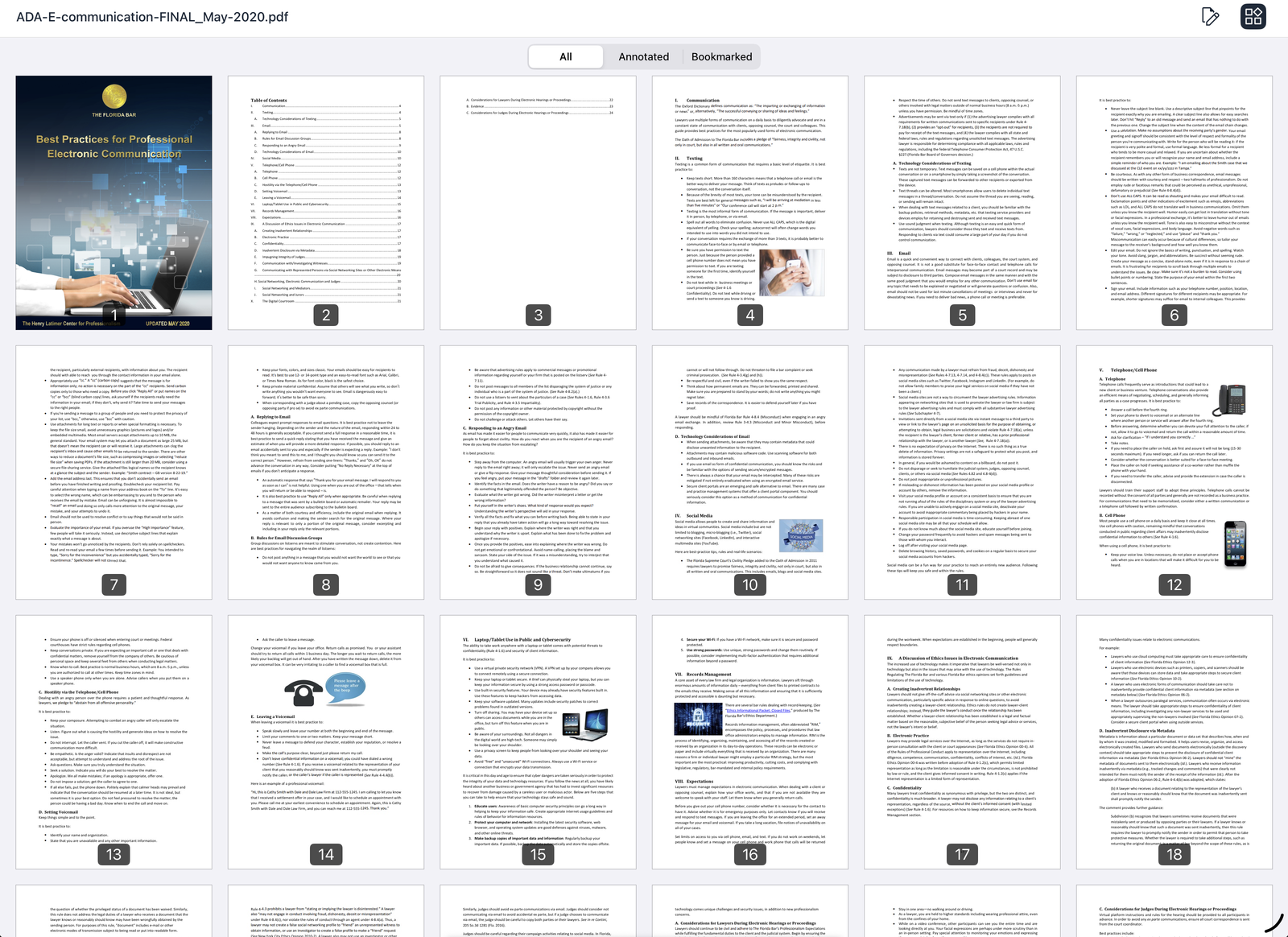
Tap Pages in the top bar to see every page. Show All pages, only Annotated ones, or only Bookmarked ones.
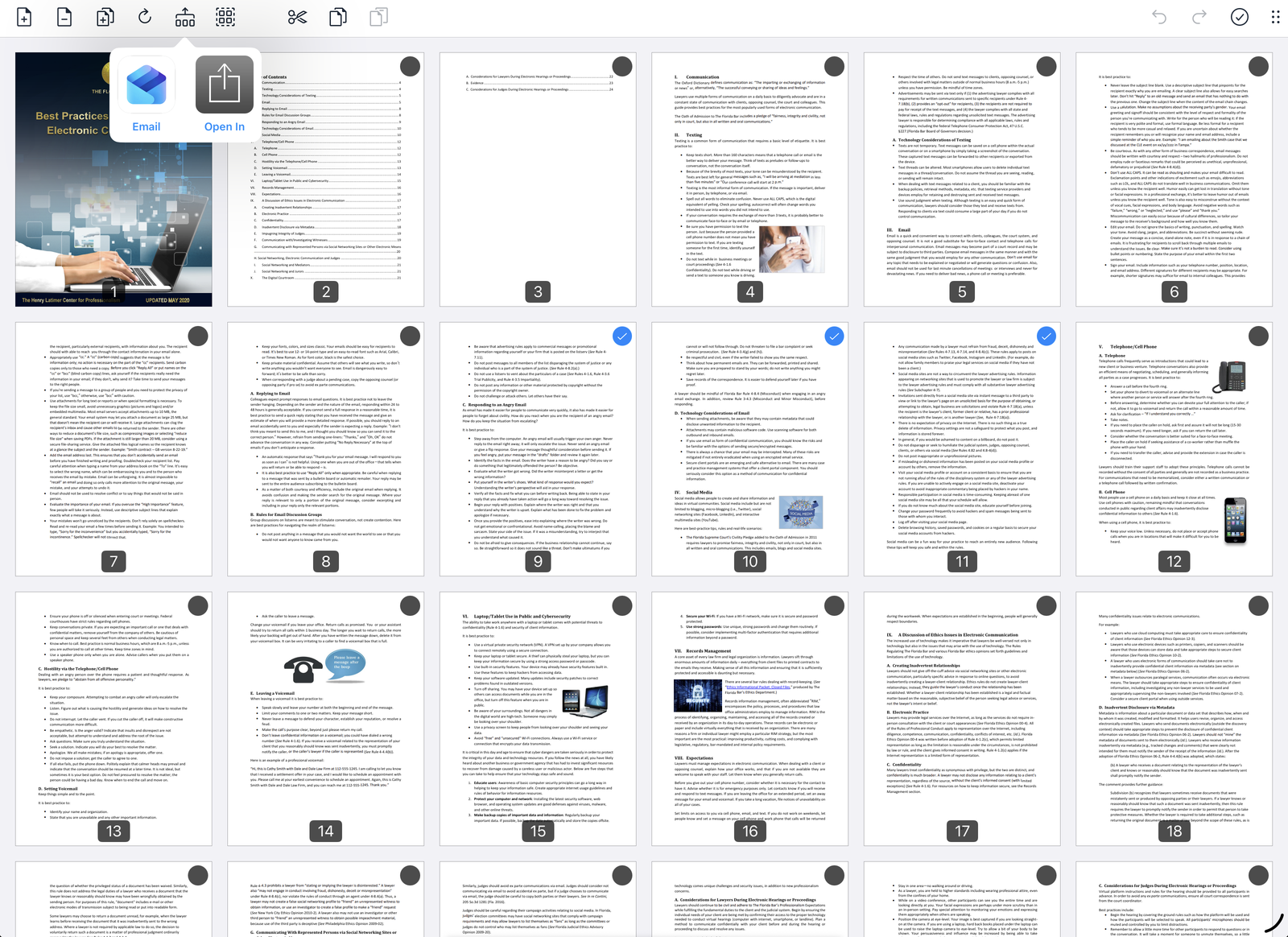
Tap the edit button to rearrange pages. Select pages, then use the toolbar to insert, delete, rotate, cut, copy and paste pages, or export only the selected pages by email or to another app.
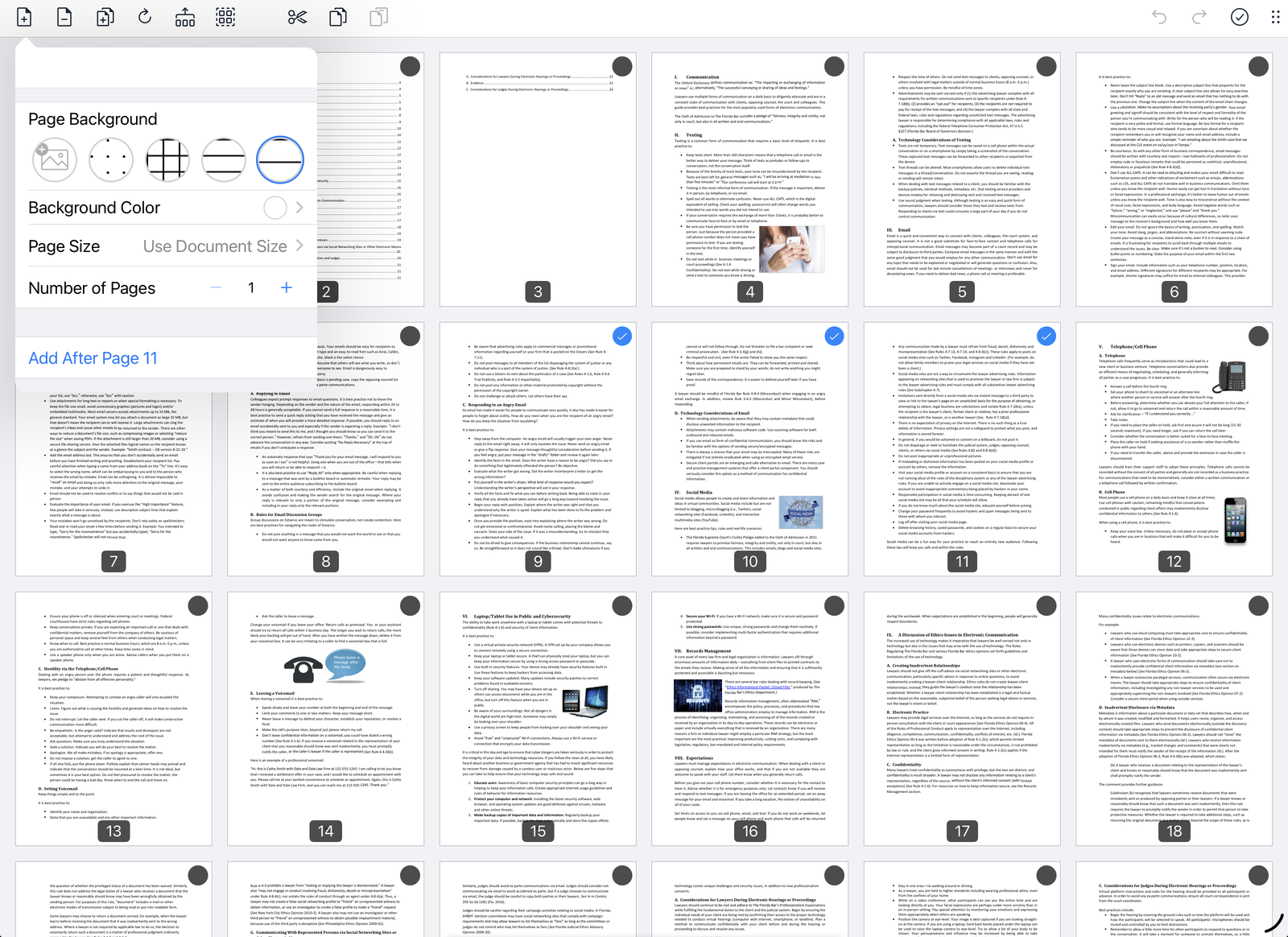
To add a page for handwritten notes, tap the insert button and choose a background (blank, dotted, grid, lined or ruled), its color, the page size and how many pages, then where to add them.
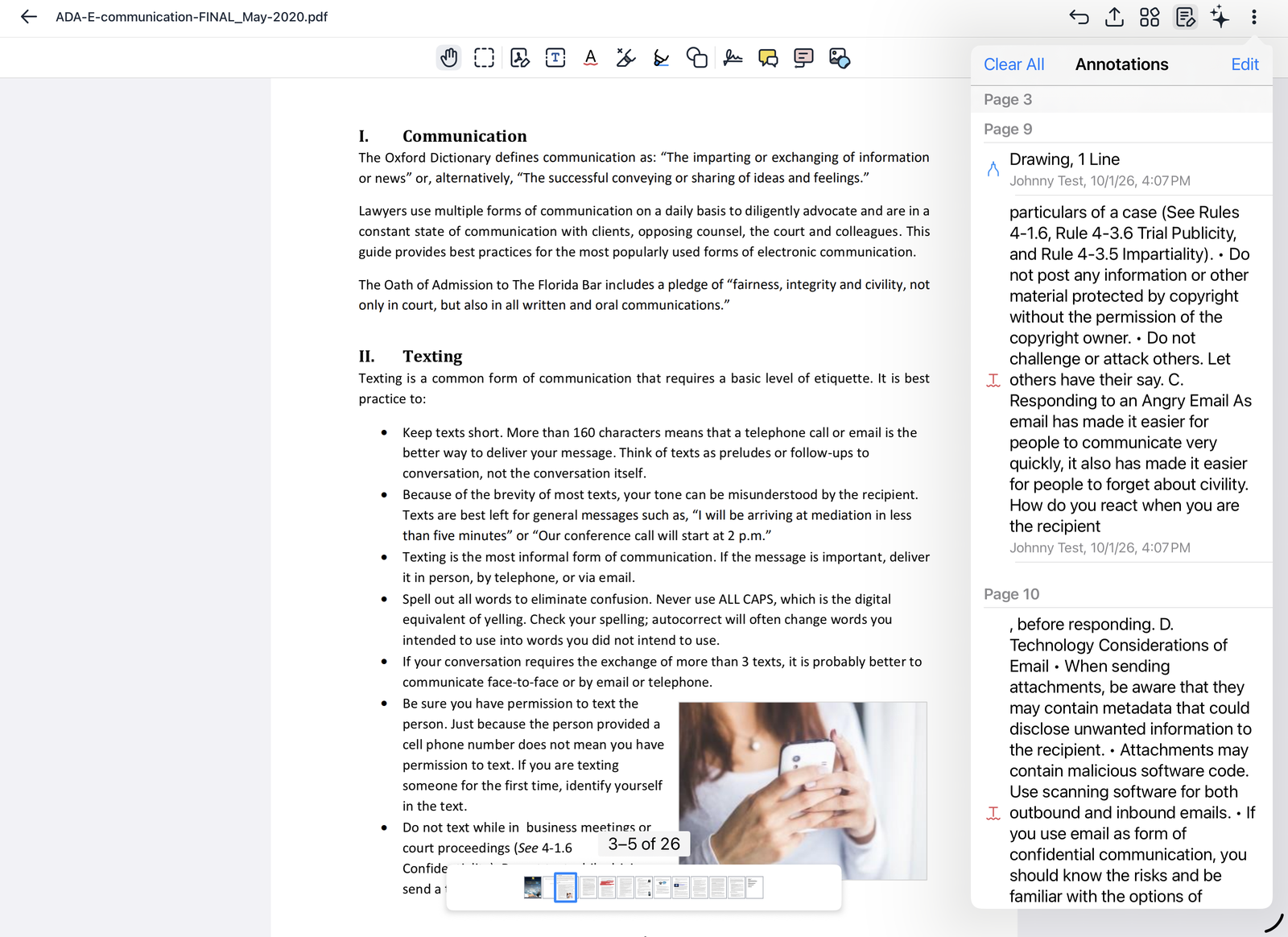
Reviewing all annotations
From ⋯, open the list of every annotation in the document, grouped by page, with who made each one and when. Tap one to go to it. Clear All removes every annotation.
Comparing document versions
Choose Compare versions… from a file's menu. The current version and an earlier one appear side by side; with Linked scroll on, they move together. Tap Keep this version to stay with the current one, or Restore this version to go back to the earlier one.
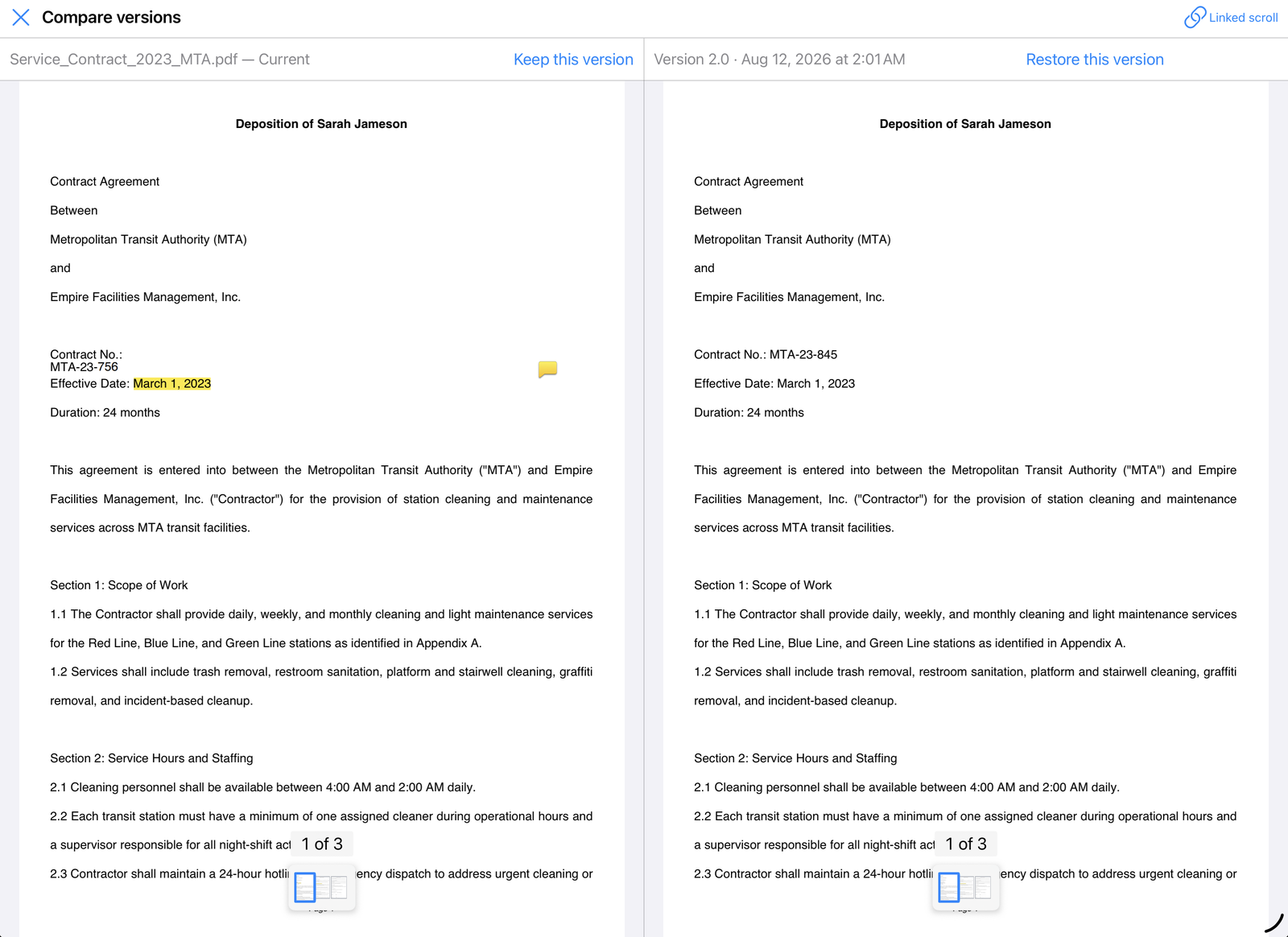
In Notate Desktop you can also merge: choose which parts of each version to keep and combine them into a new document. Merging is coming to iPhone and iPad.
Sharing a document
Tap Share in the top bar and choose Share full document, or Share annotated pages to send only the pages you marked up.
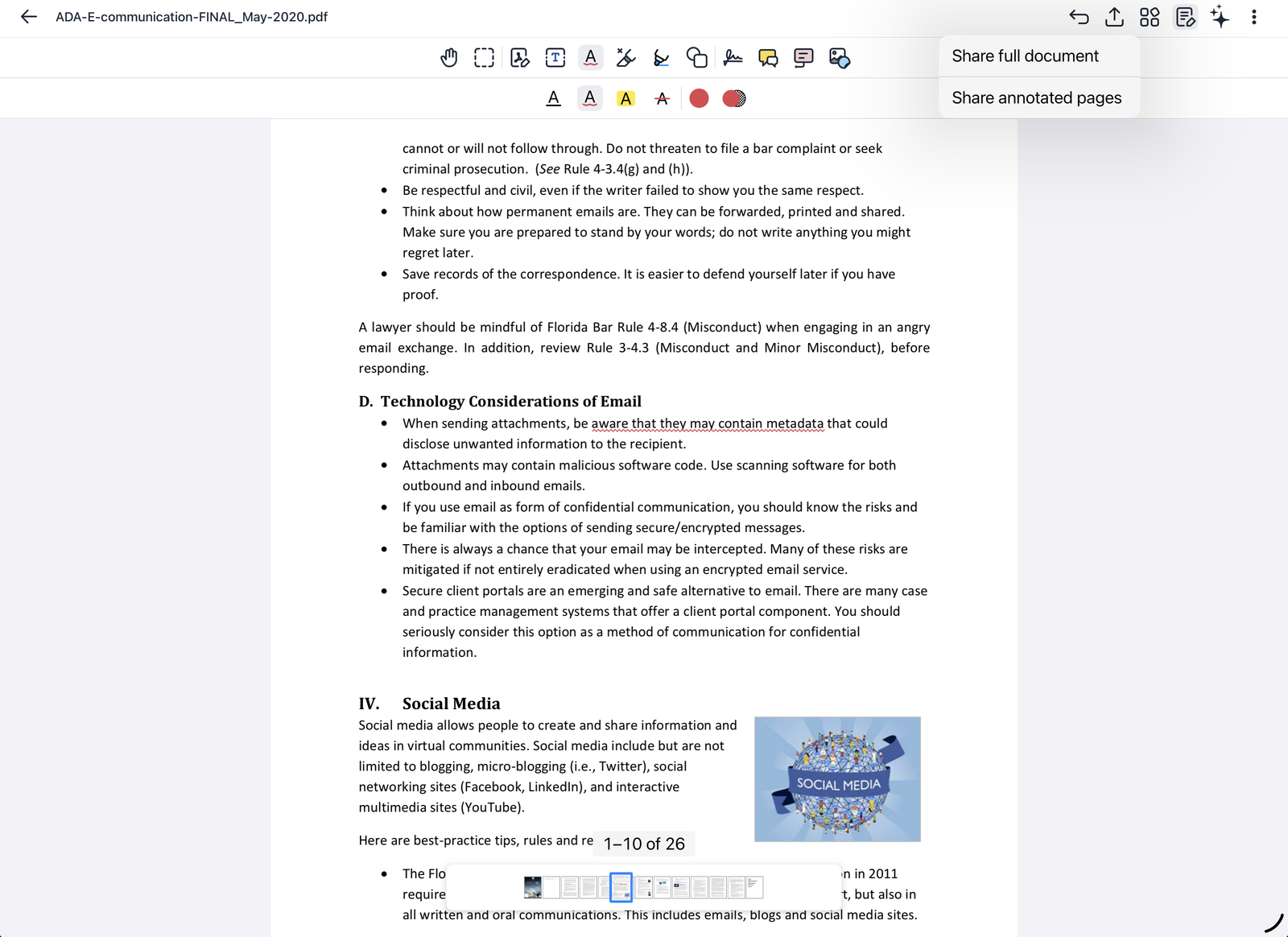
If Flatten Annotations is on in Settings → Files, your markup is merged permanently into the pages you send.
Closing and saving
Changes to a file in one of your storage locations are saved automatically. When you close a document that came from an email, Notate asks what to do with your changes: Save As (choose a folder), Reply to email, or Discard Changes.